KAVAN Smart PRO telemetry Lua applications - Setup manual: Difference between revisions
No edit summary |
|||
| (6 intermediate revisions by the same user not shown) | |||
| Line 1: | Line 1: | ||
=== Introduction === | === Introduction === | ||
Smart PRO speed controllers, telemetry and power management units seamlessly communicate with your ETHOS radio. Lua applications are used to program the Smart PRO ESC. | |||
=== Setting up === | === Setting up === | ||
The method consists of 3 phases: | The method consists of 3 phases: | ||
<ol style="list-style-type:upper-alpha"> | |||
<li>Preparing the Lua script</li> | |||
<li>Unit wiring</li> | |||
<li>Setting up and operating the telemetry</li> | |||
</ol> | |||
=== Preparing the Lua script === | === A. Preparing the Lua script === | ||
# Download files for Lua scripts - controller setup | # Download files for Lua scripts - controller setup applications: [https://kavanrc.com/files/KAV_LUA.zip kavanrc.com/files/KAV_LUA.zip] | ||
# Extract the "KAV_LUA.zip" | |||
# Extract the " | |||
# Select the folder with the required script, e.g. "smart_pro" for the KAVAN Smart PRO series of controllers | # Select the folder with the required script, e.g. "smart_pro" for the KAVAN Smart PRO series of controllers | ||
# Switch on the KAVAN V20 transmitter | # Switch on the KAVAN V20 transmitter | ||
# Connect to a PC using | # Connect the transmitter to a PC using a USB-C to USB-A 2.0 cable. | ||
# A pop-up window will appear on the transmitter, | # A pop-up window will appear on the transmitter, select "ETHOS Suite" | ||
# | # Upload the "smart_pro" folder to the transmitter's memory RADIO:/scripts | ||
# Disconnect the transmitter from the PC | # Disconnect the transmitter from the PC and turn off the transmitter. | ||
=== B. Unit wiring === | |||
=== C. Setting up and operating the telemetry === | |||
<ol> | |||
<li>'''Telemetry setup'''<br> | |||
Assuming that the registration and pairing of the receiver is correct, check or enable the following options:<br> | |||
In Model Settings → RF System<br> | |||
[[File:V20 - Lua 1.bmp|frameless|360x360px]]<br><br> | |||
Select the receiver to which the KAVAN Smart PRO controller is paired<br> | |||
[[File:V20 - Lua 2.bmp|frameless|360x360px]]<br><br> | |||
Select the "Options" of the receiver<br> | |||
[[File:V20 - Lua 3.bmp|frameless|360x360px]]<br><br> | |||
For proper functionality, telemetry must be enabled and the telemetry port must be set to "F.Port", see Fig.<br> | |||
[[File:V20 - Lua 4.bmp|frameless|360x360px]]<br><br></li> | |||
<li> '''Putting telemetry into operation'''<br> | |||
In the section Model settings → Telemetry<br> | |||
[[File:V20 - Lua 5.bmp|frameless|360x360px]]<br><br> | |||
Select Discover new sensors<br> | |||
[[File:V20 - Lua 6.bmp|frameless|360x360px]]<br><br> | |||
The telemetry data of the controller and receiver should already be displayed in the list below.<br> | |||
[[File:V20 - Lua 7.bmp|frameless|360x360px]]<br><br></li> | |||
<li> '''Application settings'''<br> | |||
In the System → KAVAN Smart section <br> | |||
[[File:V20 - Lua 8.bmp|frameless|360x360px]]<br><br></li> | |||
Latest revision as of 09:43, 2 January 2025
Introduction
Smart PRO speed controllers, telemetry and power management units seamlessly communicate with your ETHOS radio. Lua applications are used to program the Smart PRO ESC.
Setting up
The method consists of 3 phases:
- Preparing the Lua script
- Unit wiring
- Setting up and operating the telemetry
A. Preparing the Lua script
- Download files for Lua scripts - controller setup applications: kavanrc.com/files/KAV_LUA.zip
- Extract the "KAV_LUA.zip"
- Select the folder with the required script, e.g. "smart_pro" for the KAVAN Smart PRO series of controllers
- Switch on the KAVAN V20 transmitter
- Connect the transmitter to a PC using a USB-C to USB-A 2.0 cable.
- A pop-up window will appear on the transmitter, select "ETHOS Suite"
- Upload the "smart_pro" folder to the transmitter's memory RADIO:/scripts
- Disconnect the transmitter from the PC and turn off the transmitter.
B. Unit wiring
C. Setting up and operating the telemetry
- Telemetry setup
Assuming that the registration and pairing of the receiver is correct, check or enable the following options:
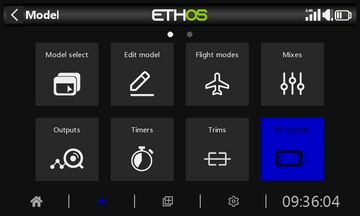
In Model Settings → RF System
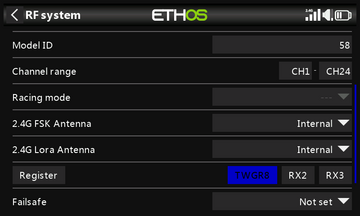
Select the receiver to which the KAVAN Smart PRO controller is paired
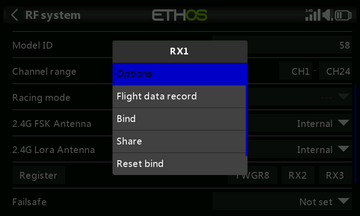
Select the "Options" of the receiver
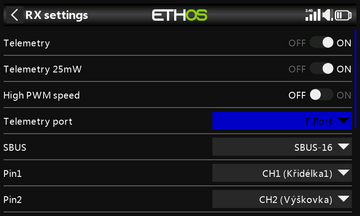
For proper functionality, telemetry must be enabled and the telemetry port must be set to "F.Port", see Fig.
- Putting telemetry into operation
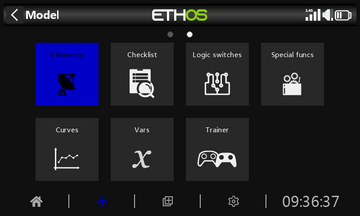
In the section Model settings → Telemetry
Select Discover new sensors
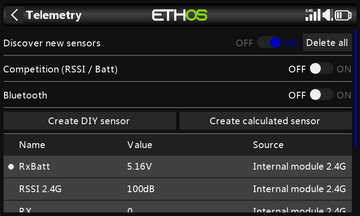
The telemetry data of the controller and receiver should already be displayed in the list below.
- Application settings
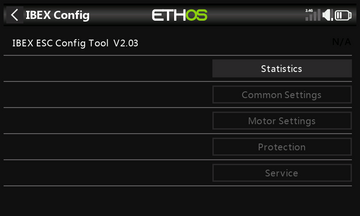
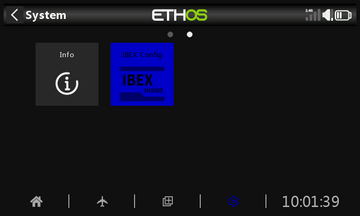
In the System → KAVAN Smart section