Translations:KAVAN Smart PRO GPS2 Logger - Instruction manual/20/cs: Difference between revisions
Mrs. Kavan (talk | contribs) (Created page with "# Připojte MAV Sense USB interface do počítače. Do něj zapojte GPS Logger. # Spusťte MAV Manager a vyberte správný sériový port v dolní části obrazovky (COMxx). GPS Logger bude rozpoznán automaticky. # V seznamu detekovaných zařízení stiskněte tlačítko „Zobrazit soubory (View files)“. center|frameless|960x960px # Vyberte soubor záznamu a stiskněte tlačítko „Stáhnout“. Budete požádáni o výbě...") |
Mrs. Kavan (talk | contribs) (Created page with "# Připojte MAV Sense USB interface do počítače. Do něj zapojte GPS Logger. # Spusťte MAV Manager a vyberte správný sériový port v dolní části obrazovky (COMxx). GPS Logger bude rozpoznán automaticky. # V seznamu detekovaných zařízení stiskněte tlačítko „Zobrazit soubory (View files)“. center|frameless|960x960px # Vyberte soubor záznamu a stiskněte tlačítko „Stáhnout“. Budete požádáni o výbě...") |
(No difference)
| |
Latest revision as of 12:24, 15 October 2024
- Připojte MAV Sense USB interface do počítače. Do něj zapojte GPS Logger.
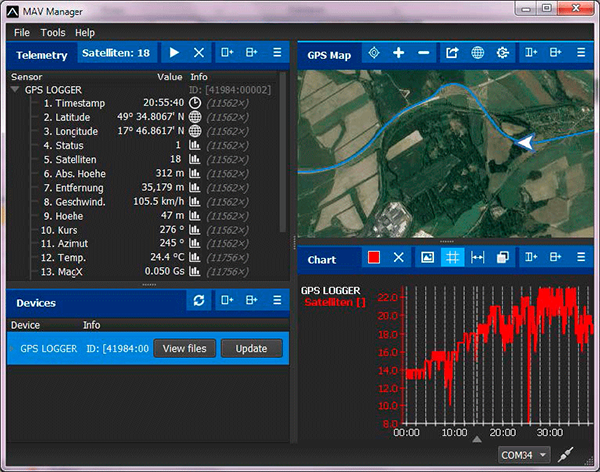
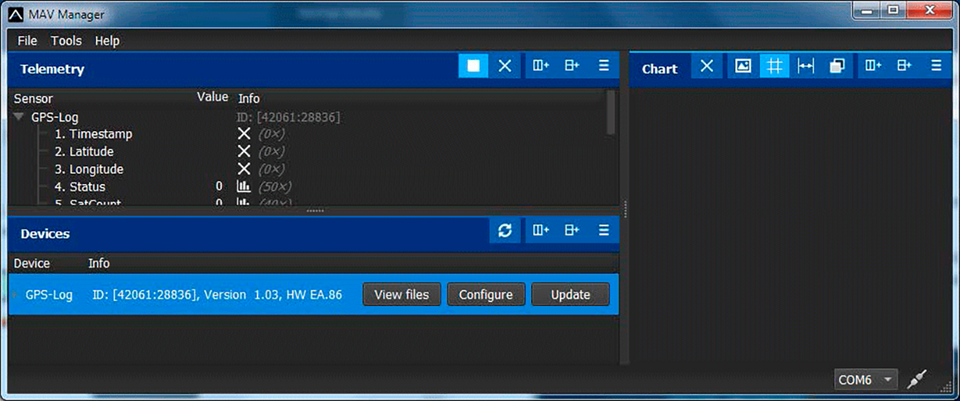
- Spusťte MAV Manager a vyberte správný sériový port v dolní části obrazovky (COMxx). GPS Logger bude rozpoznán automaticky.
- V seznamu detekovaných zařízení stiskněte tlačítko „Zobrazit soubory (View files)“.
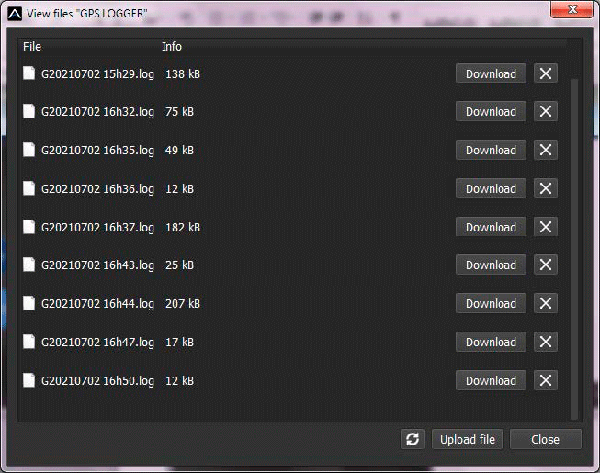
- Vyberte soubor záznamu a stiskněte tlačítko „Stáhnout“. Budete požádáni o výběr cílového souboru. Jakmile přenos skončí, budete dotázáni, zda chcete stažený soubor otevřít. Stiskněte „Ano“.
- Uložená data můžete zobrazit v grafu či na mapě. Záznam můžete znovu uložit, případně lze exportovat koordináty do KML.