KAVAN R10 / Stabi - Instruction manual
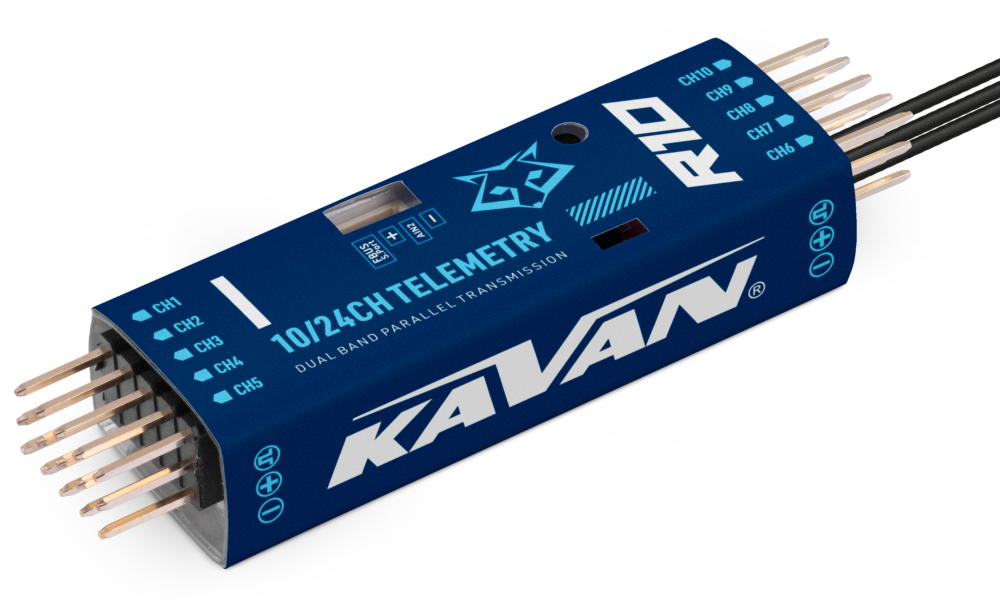
KAVAN R10
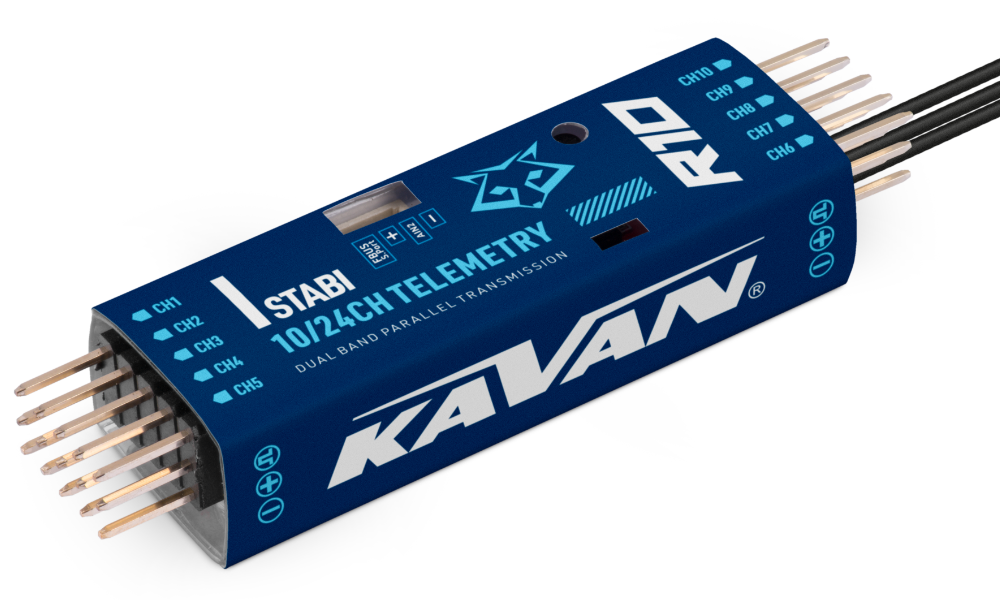
KAVAN R10 Stabi
Introduction
Congratulations on your purchase of the KAVAN R10 advanced 10-channel telemetry receiver. It operates on a 2.4GHz simultaneous dual-frequency transmission system TW 2.4GHz. It has 10 high-precision PWM channels and 16 or 24-channel modes using S.BUS. Two detachable antennas with IPEX4 connectors provide full signal strength over a range of up to tens of kilometres. It is especially ideal for gliders, but you can also use it for other various models. With redundancy support, it can be connected as a primary receiver via S.BUS. With the TW 2.4GHz protocol, both receivers work fully simultaneously in this connection. Thanks to the F.BUS connection option, you can also connect it to compatible telemetry devices, providing bidirectional data transmission via a single cable.
It features advanced interference suppression for reliable, stable signal transmission across the entire range. Smart transmission system matching speeds up pairing. The black box function stores essential flight data. Receiver operating statuses are indicated by an LED indicator. Smart pairing allows firmware updates wirelessly.
It is also available in a stabilised version offering ADV-enhanced stabilisation features. The ADV stabiliser offers an advanced mode with multiple programmable stabilised channels and flexibility.
The classic stabilisation mode has been expanded with 5 additional stabilisation channels that provide pin mapping for each channel in several flight modes such as Stabilise, Auto-Level, Hover and Knife-Edge with model aircraft.
The Advanced Stabilisation feature includes high-precision telemetry sensors to monitor altitude, vertical speed, etc.
In Advanced Stabilisation mode, all output pins are configurable for stabilisation and other advanced features such as Stab file sharing, programmable parameters, developer access, etc.
Firmware
Download the latest firmware '''TW R10 / SR10''' in the ETHOS Suite or directly:
Overview
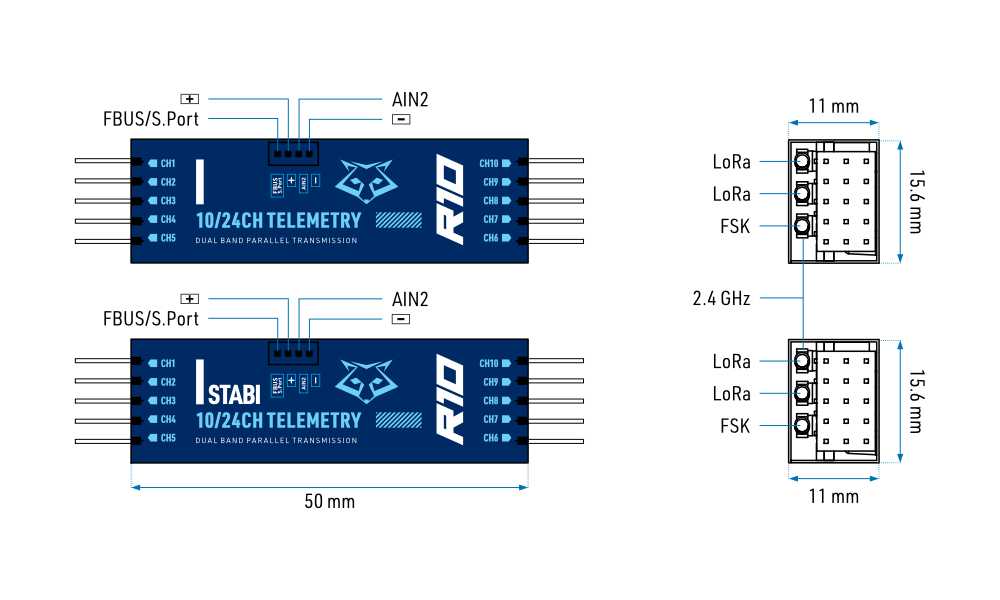
Technical specifications
| Dimensions | 64×16.6×12.4 mm (L×W×H) |
|---|---|
| Weight | 9.4 g |
| Number of channels | 10 PWM channels + 16/24 channel mode via S.BUS |
| Operating voltage range | 3.5–12 V (recommended supply 2S LiXX) |
| Operating current | ≤ 120 mA at 5 V |
| Operating frequency | 2.400–2.4835 GHz |
| Operating range | < 2 km; actual range depends on local conditions |
| Max. radiated power | < 20 dBm (EIRP) |
| Vario - vertical speed measurement range | ±10 m/s (R10 Stabi) |
| Vario - altimeter range and resolution | −700 m to 10 000 m, 0.1 m (R10 Stabi) |
| External voltage measurement range via AIN2 | 0–35 V (battery voltage divider ratio: 1:10) |
| Antenna connector | IPEX4 |
| Compatibility | TW 2.4 GHz transmitters |
Features
- Increased protection against RF interference and more stable RF transmission
- Simultaneous dual-frequency TW 2.4GHz transmission system with smart pairing
- Built-in advanced stabilisation features (R10 Stabi)
- Built-in high-precision telemetry sensor (altitude, vertical speed etc.) (R10 Stabi)
- Black box feature
- High maximum operating range
- Wireless firmware updates (OTA – OverTheAir)
- 10 configurable channels
- CH1: PWM / S.BUS OUT / FPort / S.Port / SBUS IN
- CH2–10: PWM / SBUS OUT / FBUS / S.Port
- F.BUS / S.Port
- SBUS OUT port (Supports 16/24CH mode)
- SBUS IN port (Supports signal redundancy)
LED indicator
| Green (LoRa) | Blue (FSK) | Red | Status |
|---|---|---|---|
| On | Off | On | Registering |
| Flashing | Off | Flashing | Registration complete |
| On | Off | Off | Pairing |
| On | Flashing | Off | Pairing complete |
| On | Flashing | Off | Working properly |
| Off | Off | On | Fail-safe mode |
| Yellow | State (Accelerometer calibration) |
|---|---|
| On | Exceeding limits (0.9 g, 1.1 g) |
| Off | Normal status |
| Blinking | Calibration completed |
| Yellow | State (Self-check) |
|---|---|
| On | Centre detection in progress |
| Blinking | Detecting channel minimum and maximum |
| Off | Self-check completed |
Main section
Disconnect the electric motor and stop any internal combustion engine before binding, stabiliser setup or calibration. Keep the propulsion system safe during all ground checks.
Registration and pairing
Registration
Before you can start using your receiver, you must first register it.
- Begin the registration process by selecting [Register].
- A window displays „Waiting....“ and the voice prompt „Register“ repeats.
- Hold the receiver’s F/S pairing button and switch on its power. Wait for both the red and green LEDs to light up. Set the following registration details as required:
- RID: This is the transmitter’s unique Owner Registration ID, written into the receiver memory. To share models and their receivers between your transmitters, or with other modellers, set the same RID on those transmitters and use Smart share.
- RX name: The receiver is named automatically on first pairing. You can change its name at any time, for example to identify channel assignments when several receivers are used:
- RX4R1 for CH1–8.
- RX4R2 for CH9–16.
- RX4R3 for CH17–24.
- UID: Distinguishes receivers used together in one model. Leave the default 0 for a single receiver. With several receivers, the usual assignments are:
- 0 for CH1–8.
- 1 for CH9–16.
- 2 for CH17–24.
- The UID cannot be read back from the receiver, so label the receiver with it. These channel groups are registration examples; they do not increase the number of physical PWM outputs.
- Select [Register] to finish. When „Registration OK“ appears, select [OK].
- Switch off the receiver. It is now registered, but must still be paired with the transmitter.
Do not perform pairing with an electric motor connected or an internal combustion engine running.
Pairing
Pairing associates the registered receiver with one transmitter. It will communicate only with that transmitter until paired with another. Perform a range check before first use.
- Switch off the receiver power.
- At RX1, select [Pairing]. The voice prompt „Pairing“ repeats every few seconds and the screen displays „Waiting for receiver...“.
- Switch on the receiver without holding its F/S button. The device-selection window displays the receiver name.
- Select the receiver name. A message confirms successful pairing.
- Switch off the transmitter and receiver.
- Switch on the transmitter, then the receiver. A steady green LED, flashing blue LED and red LED off confirm connection. Pairing need not be repeated unless either device is replaced.
- The receiver responds only to its paired transmitter; other transmitters nearby do not control it.
- The receiver name is displayed next to RX1.
- The receiver is ready for use.
- For a redundant installation, repeat for receivers 2 and 3 as required.
IMU mode (R10 Stabi)
The SxR procedure below describes older software. For firmware 3.0.x, use the current Stabilizer Config instructions, including reset, rebinding, calibration and fail-safe verification after updating.
When using the latest firmware versions of TW(≥1.0.9) Stabi-series receivers, please make sure the newest version of Stab Lua tools are running on your radio.
The devices with ADV features offer three modes to set up the stabilisation module:
- OFF mode: The stabilisation module is not activated in the mode.
- BASIC mode: The mode is enabled by default, the basic configurations can be done directly on the radio.
- ADV: The mode supports full configuration of stabilisation mode with RBmixer programmer on PC.
Selecting the BASIC mode for the normal stabilisation usages. To access more flexibility in the ADV stabilisation feature, please use the RBmixer software to configure the stabilisation module.
Set the IMU mode to ADV mode and change the ADV config option from Disable to Enable, which supports parameter setting for ADV self-stabilising mode through the Upgrade interface.
If you do not use the ADV advanced self-stabilising mode of the receiver, this option must be disabled.
Please ensure the ADV config is set to Disable from the SRX Basic script before a flight.
Horizontal calibration (R10 Stabi)
When using the latest firmware versions of TW(≥1.0.9) Stabi-series receivers, please make sure the newest version of Stab Lua tools are running on your radio.
Click [Start] to enable the CaliHorizontal mode to do the calibration for the horizontal plane.
The „CaliHorizontal“ function is only activated for ADV mode horizontal calibration. It doesn't work while using the basic mode.
Two independent stabilising functions (R10 Stabi)
When using the latest firmware versions of TW(≥1.0.9) Stabi-series receivers, please make sure the newest version of Stab Lua tools are running on your radio.
- Stable System page 1/2: Allows turning on/off the 1st part of stabilisation channels (CH1–6).
- Stable System page 2/2: Allows turning on/off the 2nd part of stabilisation channels (CH7–11).
Press ENTER on the navigation knob to switch to the second configuration page of stabilisation channels.
There are two independent stabilisation systems, calibration and self-check must be completed for both systems.
First steps – stabilisation function (R10 Stabi)
- Create a model and make sure the connected receiver is paired with the radio.
- Ensure stabilisation is enabled and calibrate the gyroscope sensor of the device.
- Connect the servos and attach the stabilisation device to the model.
- Set up the mixer channel and radio switches.
- Determine the [Wing Type] & [Mounting Type].
- Check the stabilised channel outputs of the receiver in the Auto-Level mode.
- Check the stick control of the transmitter in the manual mode.
- Start the Self-Check of the receiver.
- Fail-safe setting.
Please move to the [DOWNLOAD] section from the product page to download the functional Lua scripts (Place the decompressed folder in the root directory of the [Scripts] folder on the memory card to use.)
Gyroscope calibration (R10 Stabi)
Ensure the stabilisation function is enabled
Move to the [SxR Cali] tool and calibrate the gyroscope sensor
- The gyroscope of the device (6 surfaces) must be calibrated before mounting into the model. Place the device on a flat surface and follow the instructions below to calibrate the gyroscope.
- Make sure the stabilisation device is lying on the surface with the logo/label facing upwards. Move to the radio and enter the [SxR Cali] tool and select „click to confirm“. At this moment, the yellow LED light will flash. After it turns off, follow the prompts to calibrate the sensor.
- Complete all 6 orientations requested by the calibration tool. In the corresponding orientation, the reference reading is approximately 1.000 with a tolerance of ±0.1. Follow the tool’s axis prompts for X, Y, Z and Mod; do not try to make every axis read 1.000 at the same time.
- The calibration is completed if all the steps above are done.
Servo connection and installation (R10 Stabi)
Connect servos to the available receiver outputs according to the confirmed mapping of the logical functions below.
Please make sure the receiver's Pins 6–10 face forward in the nose direction, and the other pins face backwards.
| Channel | Corresponding tag | Control surface |
|---|---|---|
| CH1 | AIL 1 | Aileron |
| CH2 | ELE 1 | Elevator |
| CH3 | THR | Throttle |
| CH4 | RUD | Rudder |
| CH5 | AIL 2 | Aileron |
| CH6 | ELE 2 | Elevator |
| CH7 | AIL 3 | Aileron |
| CH8 | ELE 3 | Elevator |
| CH9 | RUD 2 | Rudder |
| CH10 | AIL 4 | Aileron |
| CH11 | ELE 4 | Elevator |
| CH12 | User-defined | — |
| CH13 | User-defined | Gyro gain adjustments |
| CH14+CH15 | User-defined | Flight modes |
Gyro gain adjustment of CH13: When the value of CH13 is in the centre, the gain is zero. The gain increases with the value. When the value is ±100%, the gain is at maximum.
The table lists logical stabiliser functions through CH15; the R10 has only 10 physical PWM outputs. Connect servos only to the available outputs with the confirmed channel mapping. Do not assume additional physical sockets exist.
Set up the mixer channel and radio switches
Use the channel list to assign controls and switches. The example CH13–CH15 assignments may be adapted to your preferences; verify their actual output values and flight modes before use.
Move to the [SxR Stab] tool, determine the [Wing Type] & [Mounting Type]
[Gain] and [Offset] configurations of flight modes
- Gain – Stab mode
- Gain – Auto-level mode
- Gain – Hover mode
- Gain – Knife mode
- Angle offset – Auto-level mode
- Angle offset – Hover mode
- Angle offset – Knife mode
Check whether the reaction of the wing servo is in line with the flight attitude caption below in the [Auto-Level] mode. If not, please try to invert the corresponding channel output in the [SxR Stab] tool.
Stick priority & Reversed stick priority for AIL1/2, RUD and ELE1/2 channels
The stabilised feature turns invalid if the output values of the stick operations on these channels exceed the set values for the stick priority here.
Inspection of flight attitude
To ensure flight safety, checking the compensation direction of the model is strongly recommended. Activating auto level mode will produce a strong deflection on AIL and ELE, which is used to check the response of the aileron and elevator. Also, activating the Knife-edge and Hover mode will result in the same reaction on the rudder.
When the model is rolled left or right, the ailerons must act to oppose the roll. (Fig. 2)

When the nose is raised or lowered, the elevator must act to oppose the pitch change. (Fig. 3)

When the nose is turned left or right, the rudder must act to oppose the yaw change. (Fig. 4)

If the compensation direction is wrong, reverse it in [SxR Stab] and repeat the ground check. Do not fly until all compensation directions are correct.
Check whether the reaction of the wing servo is in line with the radio stick operation in the [Manual] mode. If not, please try to invert the corresponding channel output by pressing the channel bar in the [Output] tool.
Self-check (R10 Stabi)
- Make sure the model is in a horizontal position on the ground, then put the throttle to 0, and keep the other channels in the centre position.
- Move to [System] and enter the [SxR Stab] tool, then click [Start] and the blue LED light turns on. Once the blue LED starts flashing, we can calibrate the maximum travel of stick channels (excluding the throttle channel).
- If the calibration is completed, the LED turns off and the servos react left and right to indicate the calibration process is completed.
To do the Self-check of the stabilisation device, please ensure the stabilisation function is enabled. Enter the [SxR Stab] tool and turn On the [Stabilising], then quit the [SxR Stab] tool and back into this tool again, now the [Self-check] can be enabled.
Setting the flight modes (R10 Stabi)
Quick mode
It supports stabilisation mode, auto-level mode, and manual (Gyroscope is off) mode and is configured through CH14. The precise configuration is written below.
The default mode of R10 Stabi is Quick Mode.
- If Quick Mode is applied, there is no Knife-Edge or (3D) Hover Mode.
- CH15 is not used when using Quick Mode.
Enable Quick Mode in [SxR Stab]. Confirm each switch position by observing the model’s response on the ground before flight.
| Channel | Position | Flight mode |
|---|---|---|
| CH14 (3-pos sw.) | Switch DOWN | Manual (stabilisation off) |
| Switch MIDDLE | Stabilisation mode | |
| Switch UP | Auto-level mode |
Conventional mode
CH14 and CH15 select stabilisation, auto-level, hover, knife-edge or manual mode (gyroscope off), as shown below.
| Flight mode | Stabilisation | Automatic level | Hover | Knife-edge | Manual (stabilisation off) |
|---|---|---|---|---|---|
| CH14 (3-pos switch) | CH14 sw. down & CH15 sw. mid | CH14 sw. down & CH15 sw. down | CH14 sw. down & CH15 sw. up | CH14 sw. up & CH15 sw. mid | CH14 sw. mid |
| CH15 (3-pos switch) |
Model configuration reference (R10 Stabi)
Conventional model
| Flight mode | Stabilisation | Automatic level | Hover | Knife-edge | Manual (stabilisation off) |
|---|---|---|---|---|---|
| CH14 (3-pos switch) | CH14 > M+H (CH14 sw. down) | CH14 > M+H (CH14 sw. down) | CH14 > M+H (CH14 sw. down) | CH14 < M−H (CH14 sw. up) | CH14 sw. mid |
| CH15 (3-pos switch) | M−H < CH15 < M+H (CH15 sw. mid) | CH15 > M+H (CH15 sw. down) | CH15 < M−H (CH15 sw. up) | M−H < CH15 < M+H (CH15 sw. mid) |
- M: represents the neutral pulse width (1500 μs)
- H: represents the required pulse-width change to activate the mode (50 μs). When the factory settings are selected, the switch position shown above represents the required modes.
Delta wing / Flying wing / V-Tail
The available flight modes can be assigned to CH14 with a three-position switch.
| Flight mode | Stabilisation | Automatic level | Manual (stabilisation off) |
|---|---|---|---|
| CH14 | CH14 > M+H (CH14 sw. down) | CH14 < M−H (CH14 sw. up) | CH14 sw. mid |
- When the Delta wing/Flying wing is selected, the signal produced by the transmitter should be without active mixes on the channels related to AIL and ELE. R10 Stabi will mix the AIL (CH1) and ELE (CH2) input signal with a fixed mix percentage automatically.
- When the V-tail type is selected, the signal produced by the transmitter should be without active mixes on the channels related to ELE and RUD. R10 Stabi will mix the ELE (CH2) and RUD (CH4) input signal with a fixed mix percentage automatically.
Stabilisation
When this mode is activated, R10 Stabi will compensate for external forces (wind) as soon as it receives commands from the transmitter. This function is used to enhance the stability of the model on three axes (Pitch, Roll, YAW). CH13 could be used to adjust gyro gain by assigning a knob or a slider, changing the sensitivity of the counteracting signal produced by the internal three-axis gyroscope.
Automatic level
When the mode is activated, R10 Stabi will make the model return to level orientation with an internal three-axis accelerometer and three-axis gyroscope on AIL and ELE channels after the sticks are released to neutral. RUD channel works in stabilisation mode only.
Hover
When the mode is activated, R10 Stabi will make the nose of the model straight up with an internal three-axis accelerometer and three-axis gyroscope on RUD and ELE channels (ELE and RUD inputs are not required). Under this mode, AIL is used to control the rotation of the model and THR to adjust the altitude. AIL channel works in stabilisation mode only.
Knife-edge mode
When the mode is activated, R10 Stabi will roll the plane on a certain side (wing points up) with an internal three-axis accelerometer and three-axis gyroscope on RUD and AIL channels. Thus, AIL inputs are not required. While the mode steering is done with ELE, altitude will be maintained with THR/RUD. ELE channel operates in stabilisation mode only.
Manual (stabilisation off)
When the mode is activated, R10 Stabi will transmit the received commands produced by the transmitter to the model without compensating.
Roll and pitch angle limits in Stab mode (R10 Stabi)
Make sure the [SxR Stab] script tool has been downloaded and placed in the [Scripts] folder of the storage card. The tool can be found under the [System] menu page after rebooting the ETHOS system.
Ensure the receiver is bound to the radio and its Stab data is readable through Lua script. The movement angle of Roll and Pitch for Stab mode can be configured up to 80°.
This feature will not be activated if the angle is set to 0–9°. The setting with the Roll/Pitch degree between 10–80° can have the feature work, and it's not recommended to be set with the degree values too small.
Turning on the High PWM speed mode
- The factory default setting is OFF.
- To go to the receiver [Options], select On to activate the High speed mode.
High PWM speed mode is only applied for digital servos. Turn off High PWM Speed mode when using an analogue servo, otherwise, servos will get hot and may burn out.
Choosing S.Port/SBUS OUT/SBUS IN/FBUS
- Enter the [Set] of the receiver.
- Select the FBUS/S.Port/SBUS Out/SBUS In for the channel ports.
Choosing the SBUS-16/24 mode
- Enter the RX Settings.
- Click [SBUS], then select SBUS-16 mode or SBUS-24 mode.
Black box
The black box records flight data such as RX Reset Case, RSSI and VFR. On KAVAN V20, open [RF System → Set → Flight Data Record]. In menu versions labelled [Black box], select [Save to file]. The exported .csv file is stored in the transmitter’s [logs] folder.
OTA firmware update
- Open [File Manager], select the receiver firmware file and press ENTER.
- Select [Flash RX by int.OTA] and switch on the receiver.
- Select the receiver and confirm with ENTER. Wait until the transmitter displays [Success].
- Wait 3 seconds, then verify normal receiver operation.
Do not start pairing or registration nearby during the update. Register the receiver before updating its firmware by OTA.
Range check
Perform a range check before every flight. Reflections from metal or concrete structures, or obstruction by buildings or trees, can cause signal loss.
- Place the model at least 60 cm above the ground on a non-metallic support such as a wooden bench. Keep the receiver antenna vertical.
- In ETHOS, open [RF system], select [RANGE] and press ENTER. In this mode, effective range is reduced to 1/30 of normal range.
Perform the test on the ground with the propulsion system made safe. Follow the transmitter manual for the required distance and pass criteria, and investigate unexpected loss of control before flying.
Fail-safe channel positions
When Fail-safe is turned on, 3 modes are available: No signal, Hold, Custom.
No signal
When the signal is lost, the receiver does not send control pulses on the channels. To use this mode, select it from the menu and wait 9 seconds for the Fail-safe setting change to take effect.
Hold
The receiver keeps the channel positions as they were before the signal was lost. To use this type, select it from the menu and wait 9 seconds for the Fail-safe setting change to take effect.
Custom
The receiver keeps the positions on all channels as you preselect them. Select the Fail-safe setting menu. Switch from Disconnect/Hold/Not Set to [Custom]. Select the channel for which you want to set fail-safe positions and confirm the selection. Then set the position on each desired channel and confirm the selection. Wait 9 seconds for the Fail-safe setting change to take effect.
If the fail-safe is not set, the model will always operate with the last functional state of the channels before the signal loss. This could potentially cause damage. If the fail-safe is disabled on the RF module side, the receiver will go to the default Hold mode. Do not set the Fail-safe mode for the S.BUS port to No Signal mode, as the signal would be continuously transmitted. Set the S.BUS port to Hold or Custom mode instead.
Before use, test the complete model’s fail-safe response on the ground with the propulsion system made safe. Verify that the connected S.BUS device and ESC actually stop the motor when the radio signal is lost.
Appendix
Warranty and post-warranty service
All KAVAN® receivers are covered by an extended 3-year warranty covering all manufacturing defects and faults. When claiming within the warranty period, please always present a copy of the proof of purchase with the product and provide the service personnel with as detailed and complete information as possible about the defect found, your usage and other information that will facilitate the assessment of the claim and speed up its settlement. Please make your claim at the shop where you purchased the product. If this is not possible, you can contact KAVAN Europe s.r.o. directly:
KAVAN Europe s.r.o. | Doubravice 110, 533 53 Pardubice | Czechia | +420 466 260 133 | info@kavanrc.com
Warranty and limitation of liability
As the manufacturer of this product, we have no control over your compliance with these instructions when wiring and installing the receiver into your model. Likewise, we have no control over how you build, operate and maintain the parts of the receiver. For this reason, KAVAN must disclaim all liability for any loss, damage or financial cost that is caused by the improper use or operation of products imported by us, or that is in any way connected with such activity.
Except as otherwise provided by law, KAVAN's obligation to pay compensation shall (regardless of the legal arguments asserted) be limited to the purchase price for those KAVAN products that were directly involved in the event that caused the damage. This does not apply if the manufacturer has been judicially obliged to make unlimited compensation on the basis of proven wilful or reckless negligence. We warrant that our products are in compliance with current legal provisions. The warranty does not cover failures and defects caused by:
- Misuse or improper use.
- Delayed, improper or no maintenance, or maintenance performed by unauthorised service.
- Incorrect wiring.
- Use of accessories not approved or recommended by KAVAN Europe s.r.o.
- Modifications or repairs not carried out by an authorised KAVAN Europe s.r.o.
- Inadvertent or deliberate damage.
- Normal wear and tear.
- Operation of the equipment outside the operating limits specified in the specification
KAVAN Europe s.r.o. warrants that this product is free from defects in both material and workmanship at the time of sale. KAVAN Europe s.r.o. also reserves the right to change or modify this warranty without notice. The equipment is subject to continuous improvement and refinement – the manufacturer reserves the right to change the design without notice.
This warranty certificate entitles you to a free warranty repair of the product supplied by KAVAN Europe s.r.o. within the extended 3-year warranty period stated above. The warranty does not cover natural wear and tear due to normal use, as this is a product for modelling use, where the individual parts operate under much higher loads than normal toys are subjected to.
The warranty also does not cover any part of the equipment that has been improperly installed, roughly or improperly handled, or damaged in an accident, or any part of the equipment that has been repaired or altered by an unauthorised person (this includes the application of any waterproof sprays/coatings by the user). Like other fine electronics products, do not expose this equipment to high temperatures, low temperatures, moisture, dusty environments, violent mechanical shocks and impacts. Do not leave it in direct sunlight for extended periods of time.
Recycling (European Union)
Electrical equipment bearing the crossed-out bin symbol must not be disposed of in normal household waste but must instead be taken to a specialised collection and recycling facility. In EU (European Union) countries, electrical equipment must not be disposed of in normal household waste (WEEE - Waste of Electrical and Electronic Equipment, Directive 2012/19/EU). You can take unwanted equipment to your nearest collection or recycling centre. The equipment will then be disposed of or recycled safely, free of charge. By handing in your unwanted equipment, you can make an important contribution to protecting the environment.
EU declaration of conformity
KAVAN Europe s.r.o. hereby declares that the radio equipment type R10 and other equipment supplied with it comply with Directive 2014/53/EU. The full form of the EU Declaration of Conformity is available at the following website: https://kavanrc.com/doc. This 2.4 GHz radio equipment can be used without prior registration or individual approval in all countries of the European Union.