KAVAN V10 + ECOS - Documentation
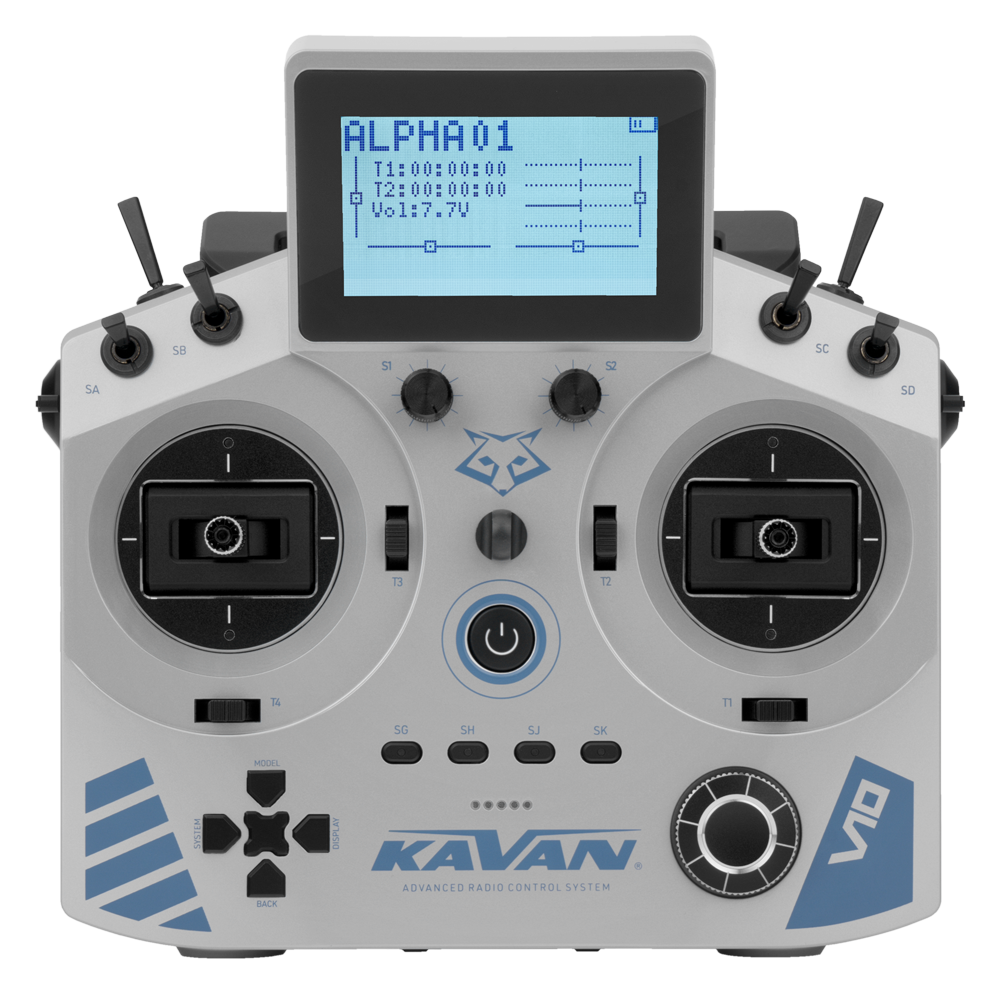
KAVAN V10 - silver
Introduction
The operating system ECOS is a new streamlined interface for monochrome-display radios. It inherits the logic of the ETHOS operating system, making it simple to learn and fast to operate.
The KAVAN V10 is an intermediate 24-channel RC set using a 2.4 GHz transmission system ACCESS or ACCST with full telemetry support. It boasts a superior response time of up to 4 ms and a range of up to tens of kilometres. The operating system is the all-new, lightweight and streamlined ECOS, which simplifies the operation, settings and learning curve. V10 can be paired with a wide range of KAVAN or FrSky receivers, telemetry or not, with classic PWM and serial outputs. It is suitable for beginners and simpler models, as well as a perfect RTF kit radio. It can be easily set up for various aeroplanes or helicopters, and even ships or land models.
Prevent the motor from starting during programming and ground tests. After changing a model, confirm the selected model memory, channel assignments, control directions, travel limits and fail-safe operation before use.
See the V10 quickstart guide for transmitter specifications, charging, mechanical adjustments, binding, range checks and safety instructions.
Main section
Main view
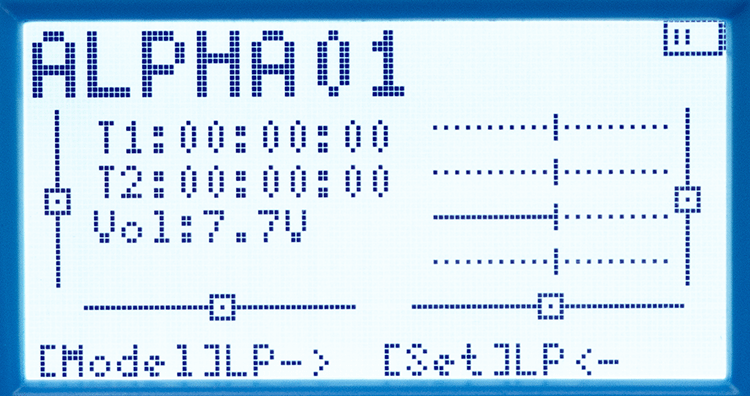
This is the default screen during operation or idling. It displays the model name, trim values, current channel output values and the remaining radio battery charge.
The V10 uses navigation buttons and a multifunction KNOB. Turn the KNOB to select items or change values; press it to edit or confirm. Within menus, ENTER changes pages. Press BACK to leave a setting or return to the previous level.
| Main view | Button | Menu |
|---|---|---|
 | ENTER | 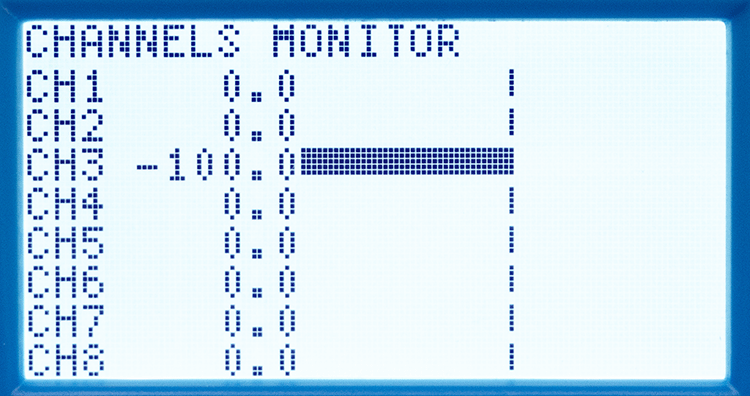 |
| MODEL | 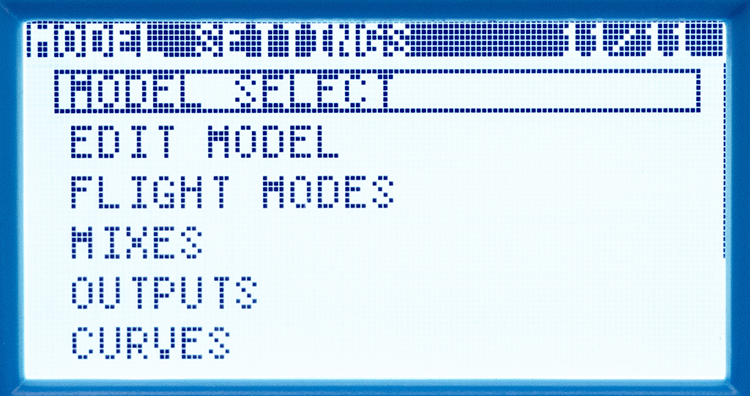 | |
| SYSTEM | 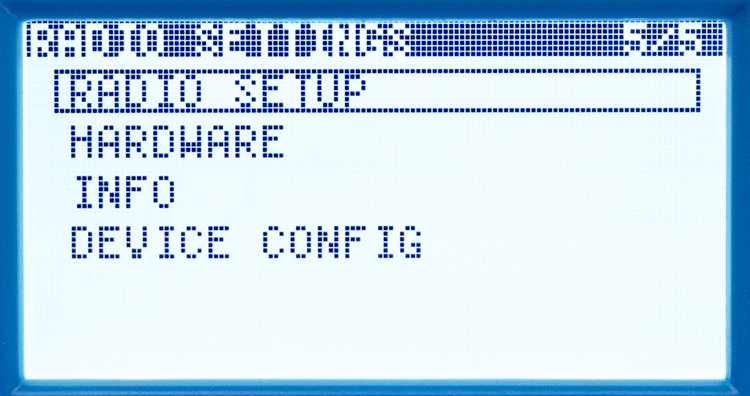 | |
| DISPLAY | 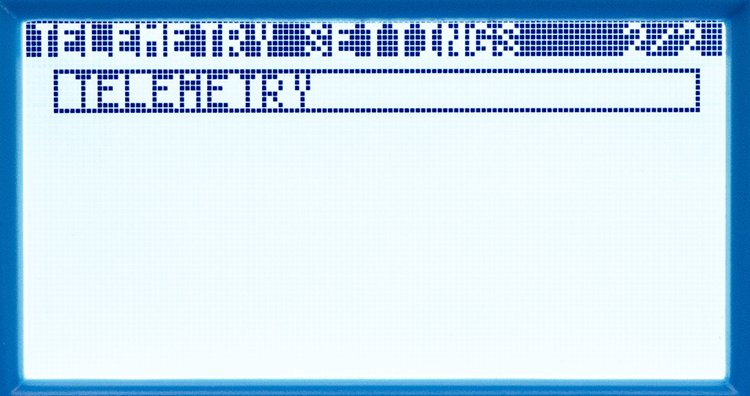 |
Channels Monitor
This menu shows the current output values of each channel, such as the aileron and throttle commands. Use it to check neutral positions and channel response before calibrating the controls. It shows commanded values, not measured surface positions or motor power.
Turn the KNOB to navigate through the channels CH1–CH24.
Press BACK button to return to the MAIN VIEW.
Model Settings
This menu contains all settings related to your model.
Turn the KNOB to navigate through the options.
Press KNOB button to expand the selected option.
Press BACK button to return to the MAIN VIEW.
Radio Settings
This menu contains all settings related to the properties of your transmitter.
Turn the KNOB to navigate through the options.
Press KNOB button to expand the selected option.
Press BACK button to return to the MAIN VIEW.
Telemetry Settings
This menu contains all settings related to the telemetry sensors. Without any telemetry devices connected, it displays the received signal strength and the receiver battery voltage.
Turn the KNOB to navigate through the options.
Press KNOB button to expand the selected option.
Press BACK button to return to the MAIN VIEW.
Model settings
Model Select
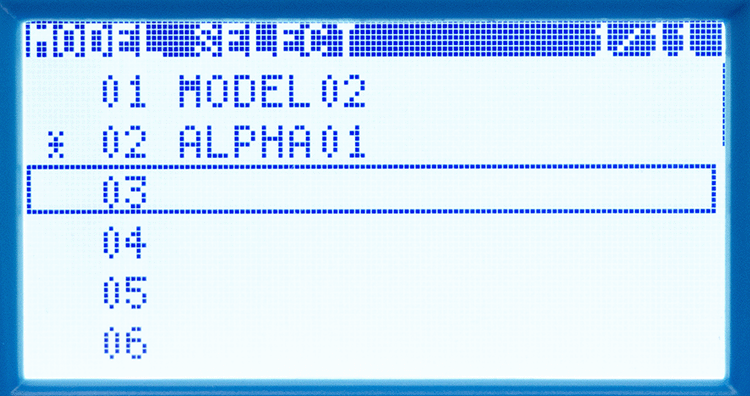
This menu contains 32 slots for storing your models. Each model has a unique ID (01–32) and a custom name. The active model is marked by a star symbol.
Turn the KNOB to navigate through the model slots.
Press KNOB button to open the slot's options.
Press BACK button to return to the first model, and press it a second time to return to MODEL SETTINGS.
Selecting a free slot:
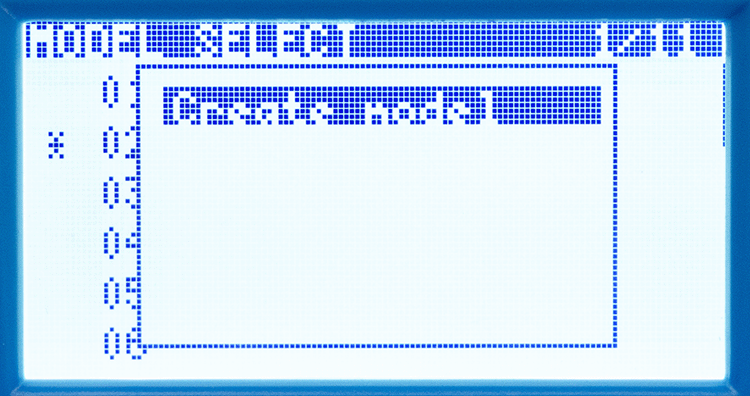
When creating a new model, you have AirSoccer, Airplane, Glider, Heli, Multi and Other presets to choose from, each containing a general channel layout. Glider further contains Normal and V-tail configurations. Airplane presets are Normal, Delta and V-tail.
Selecting a non-active model slot:
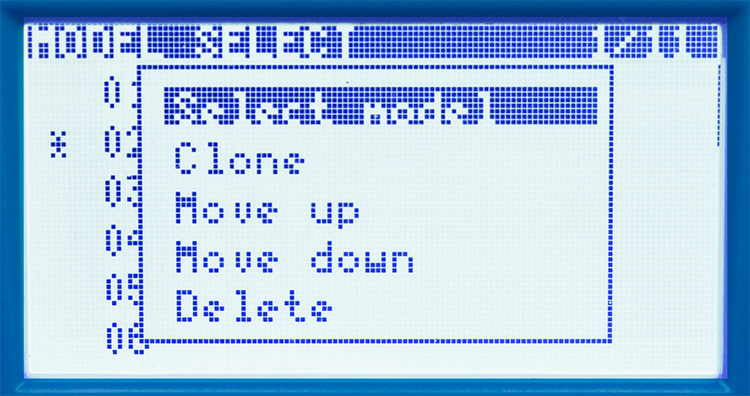
- Select model to make it active.
- Clone this model. It creates a new model in the next free slot with the same settings.
- Move up or Move down the model in the list (swapping the IDs with the above or below model).
- Delete your model.
Selecting the active model:
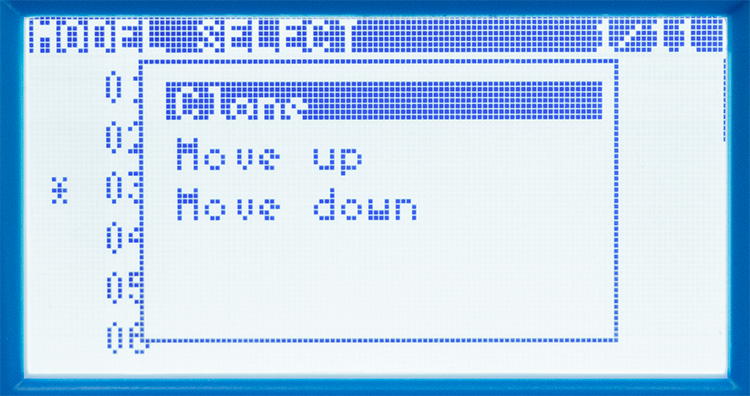
- Clone this model. It creates a new model in the next free slot with the same settings.
- Move up or Move down the model in the list (swapping the IDs with the above or below model).
Create model
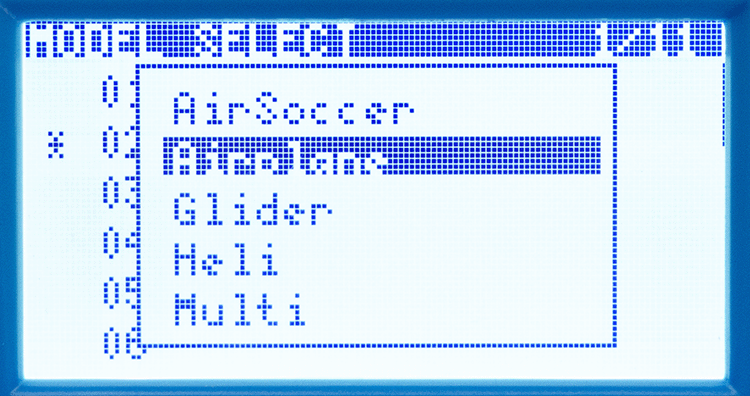
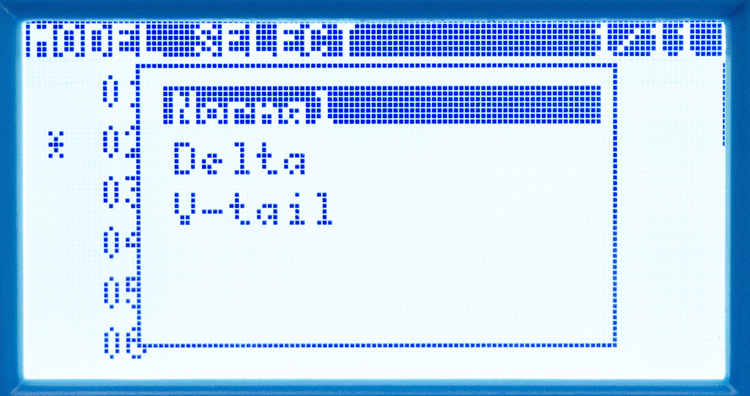
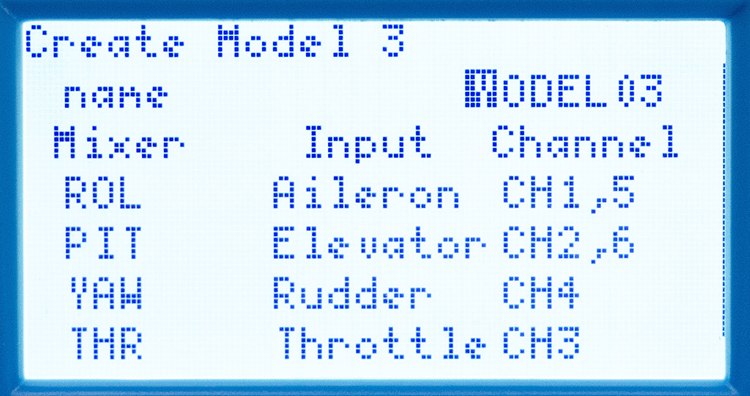
When creating a new model, turn the KNOB to navigate through name option and pre-assigned channels.
When choosing a new name, turn the KNOB to select a character slot and press it to edit that character.
Turn the KNOB to select a character. You can select the uppercase (A–Z) and lowercase (a–z) alphabet, numbers 0–9 and special characters space and hyphen.
After the name is put in, press the BACK button to return to the list.
Each pre-set channel can be later re-assigned to another control function in the Mixes menu.
Select Create model on the bottom of the screen by pressing KNOB to confirm the model creation.
Edit Model
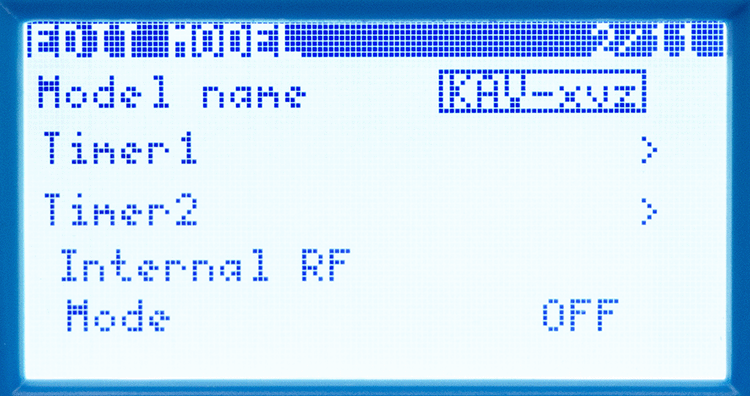
This menu is used to edit the chosen model name and timers, register and bind up to 3 ACCESS receivers. Redundancy also requires compatible receiver wiring; see the quickstart guide.
Model name
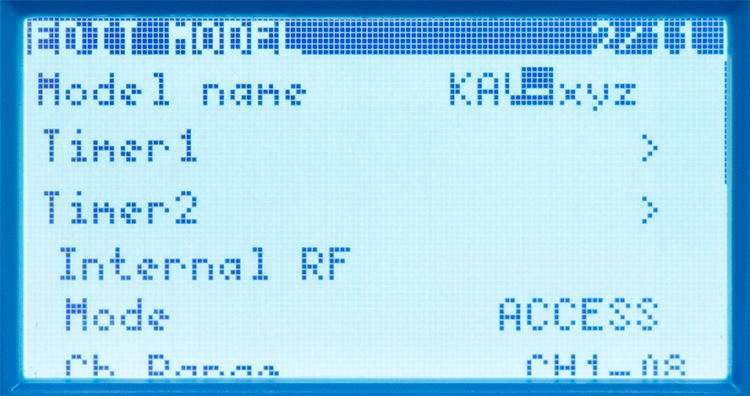
You can rename the selected model.
When choosing a new name, turn the KNOB to select a character slot and press it to edit that character.
Turn the KNOB to select a character. You can select the uppercase (A–Z) and lowercase (a–z) alphabet, numbers 0–9 and special characters space and hyphen.
After the name is put in, press the BACK button to return to the list.
Timer 1, 2
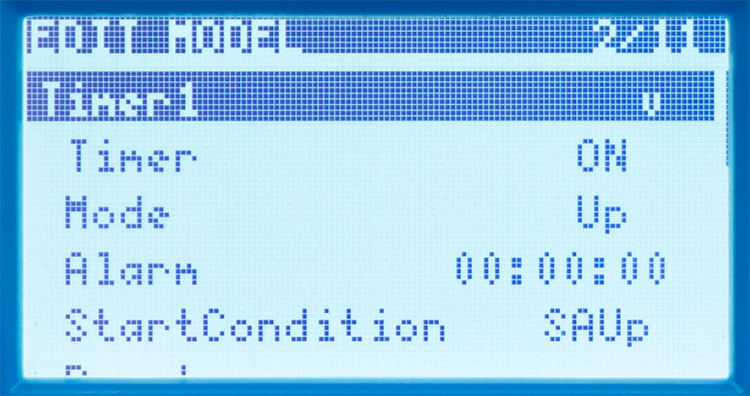
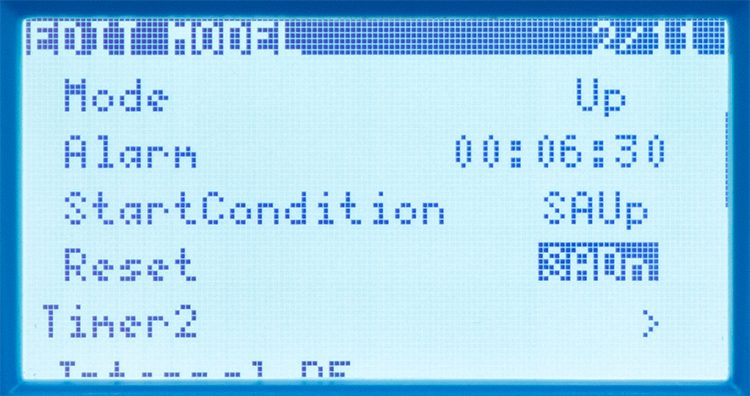
Timer options are collapsed by default (symbol > at the end of the line).
Expand the timer settings by pressing the KNOB button.
Turn the KNOB to list through the values of each parameter, and press KNOB button to list through the character slots in the timer string setting.
- Timer can be turned ON or OFF
- Mode can work in a stopwatch (UP) or countdown (DOWN) mode.
- Alarm sets the time period after which you are notified by a beep alert.
- Start condition sets the switch position that starts the timer.
- Always on – the timer is running continuously.
- SA Up – the timer runs when the SA is in the Up position.
- ! SA Up – the timer runs when the SA is not in the Up position.
- SA – – the timer runs when the SA is in the Centre position.
- ! SA – – the timer runs when the SA is not in the Centre position.
- SA Dn – the timer runs when the SA is in the Down position.
- ! SA Dn – the timer runs when the SA is not in the Down position.
- SB Up – the timer runs when the SB is in the Up position.
- ! SB Up – the timer runs when the SB is not in the Up position.
- SB Dn – the timer runs when the SB is in the Down position.
- ! SB Dn – the timer runs when the SB is not in the Down position.
- SC Up – the timer runs when the SC is in the Up position.
- ! SC Up – the timer runs when the SC is not in the Up position.
- SC Dn – the timer runs when the SC is in the Down position.
- ! SC Dn – the timer runs when the SC is not in the Down position.
- Reset – resets the timer to the set value (if in Down mode) or to zero (if in Up mode). It uses the same logic of assigning switches as an active condition.
Internal RF
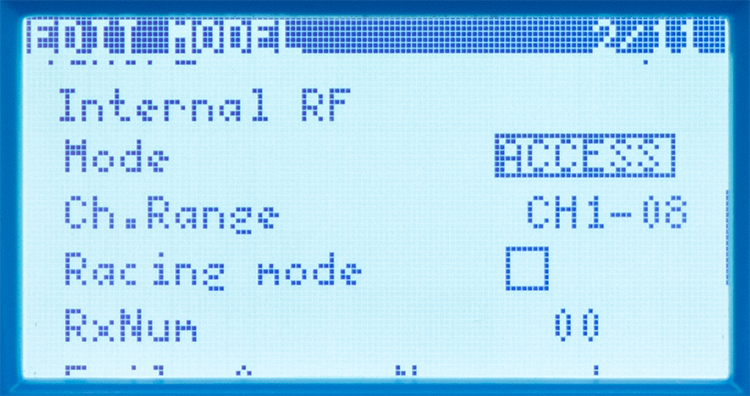
- Mode selects the radio mode according to the protocol of your receiver
- OFF – the radio transmission is turned off.
- ACCESS – the radio is in the ACCESS transmission protocol mode
- ACCST D16 – the radio is in the ACCST D16 transmission protocol mode
- Ch. Range sets the maximum channel range
- CH1–8 – Available in ACCESS and ACCST D16. Compatible ACCESS receivers also support Racing mode.
- Racing mode offers superior latency (approximately 4 ms), but works only with digital servos and with a maximum of 8 channels.
- CH1–16 – Available in ACCESS and ACCST D16.
- CH1–24 – Available in ACCESS mode only.
- CH1–8 – Available in ACCESS and ACCST D16. Compatible ACCESS receivers also support Racing mode.
- RxNum sets the model receiver number (00–63). Use a different number for each model. This is separate from the receiver name assigned during registration.
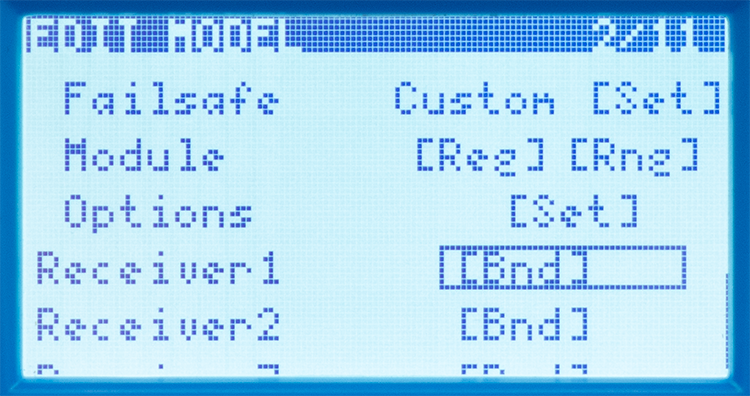
- Failsafe offers 5 selections, including the unconfigured state:
- None set – no fail-safe behaviour has been configured. Select and test a suitable fail-safe mode before use.
- Hold – retains the last channel commands before signal loss.
- Custom – applies preset channel commands after signal loss; configure each channel as required.
- No pulses – stops PWM pulses after signal loss. Wait at least 9 seconds after changing fail-safe settings. S.BUS continues to send data; check the connected device’s response to its fail-safe flag.
- Receiver – inherits the Fail-safe settings of your receiver.
- Module – allows you to register ([Reg]) a new receiver and to check its operational range ([Rng])
- Options – RF module options. The legacy source does not document these settings; their contents require confirmation for the installed ECOS version.
Set the throttle fail-safe to motor stop. With the motor disconnected or otherwise safely disabled, test actual receiver outputs after switching the transmitter off. Do not assume that Hold, No pulses or None set will stop the motor.
Receiver 1, 2, 3
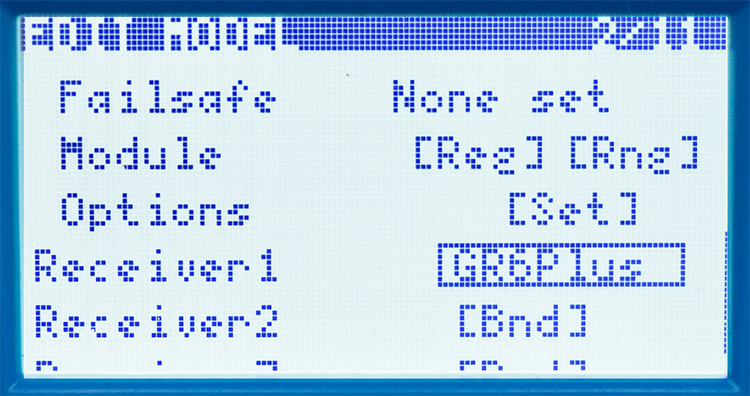
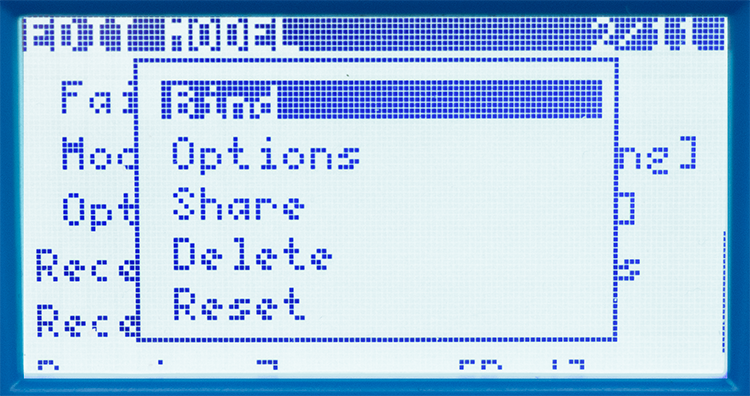
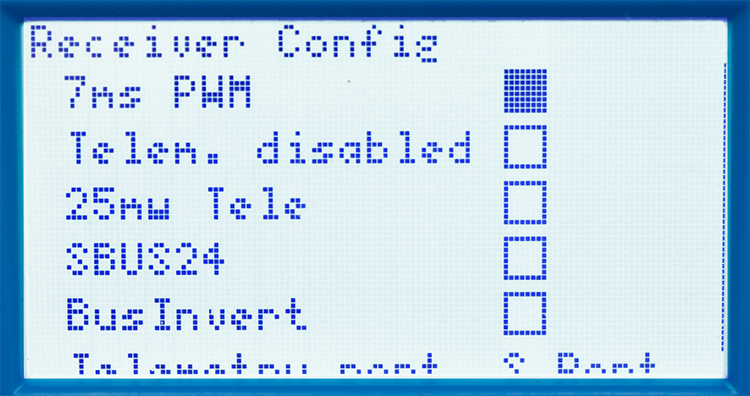
In ACCESS mode, [Bnd] binds a registered receiver. Up to 3 receiver slots are available. ACCST D16 uses direct binding without ACCESS registration or named receiver selection; follow the quickstart guide.
When the receiver is bound, use the KNOB button to open the receiver options.
- Bind will call out the binding process for a re-binding.
- Options include the general settings for your receiver.
- 7ms PWM selects a 7ms PWM period; enable it only with compatible digital servos.
- Telem. disabled disables the telemetry transmission.
- 25mW Tele limits the radiated power of the telemetry transmission to 25 mW for use in regulated regions.
- SBUS24 switches between SBUS16 (default) and SBUS24 channel modes.
- Bus Invert changes serial signal polarity, not connector orientation. Confirm compatibility with the connected device before changing it.
- Telemetry port switches between S.Port, F.Port and F.Bus interfaces for transmitting the telemetry.
- Share transfers a compatible ACCESS receiver to another transmitter. The exact ECOS procedure requires firmware verification.
- Delete removes a receiver association. Confirm the dialog before proceeding; the legacy source’s claim that this also clears registration requires verification.
- Reset resets receiver-related settings. Its exact scope requires firmware verification; do not use it on a configured model without recording the current settings.
Flight Modes
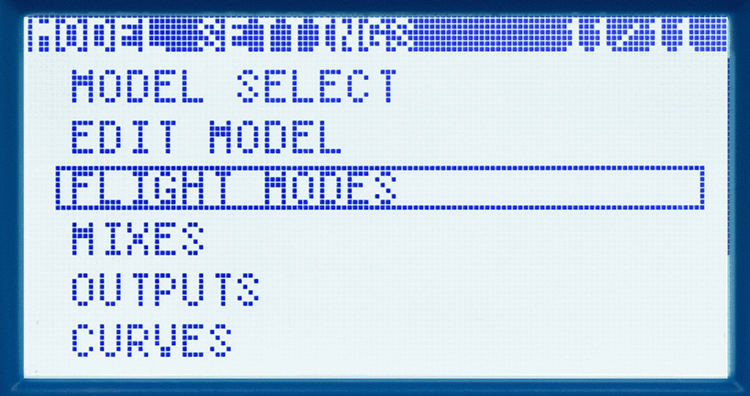
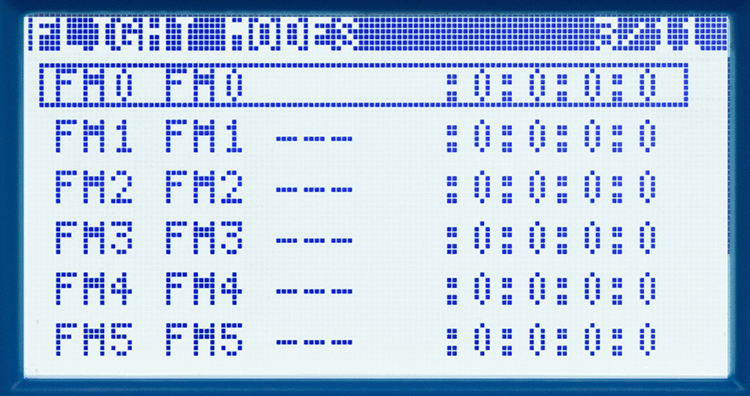
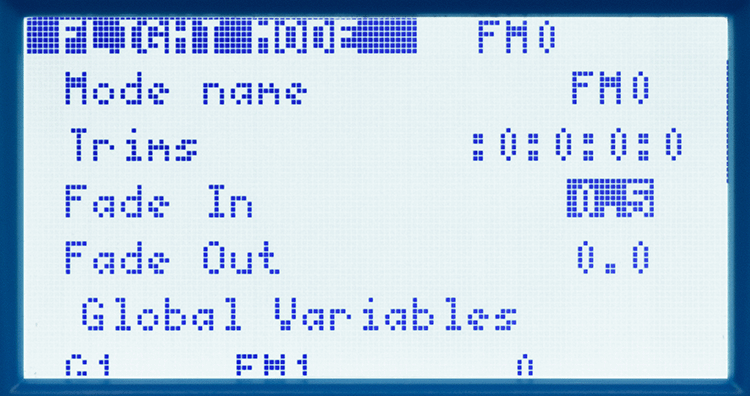
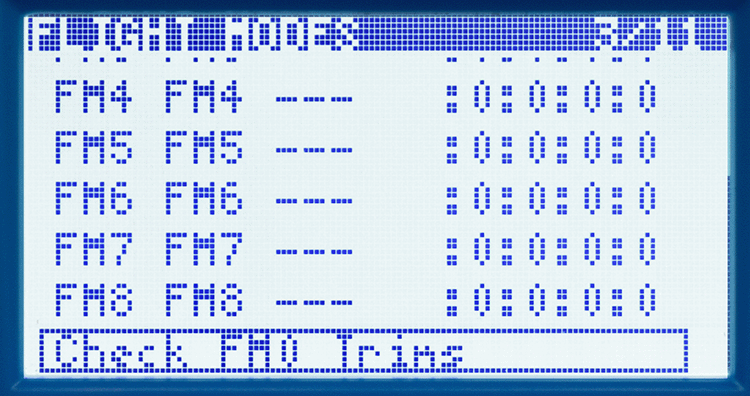
Flight modes provide 9 sets of settings: default FM0 and 8 switchable modes FM1–FM8. FM0 is active whenever no other flight mode is selected.
Turn the KNOB to navigate through flight modes.
Press the KNOB button to open the flight mode options.
- Mode name allows you to set a 3-character custom name for the flight mode.
- Trims set the trim value to apply in the selected flight mode.
- Fade in sets the transition time when entering the flight mode.
- Fade out sets the transition time when leaving the flight mode.
- Global variables provides 9 reusable values (G1–G9) for each flight mode. Their assignment and inheritance require confirmation for the installed firmware.
Check FM0 Trims temporarily disables the trim settings of the active Flight mode and uses the default regular flight mode trim settings.
Mixes
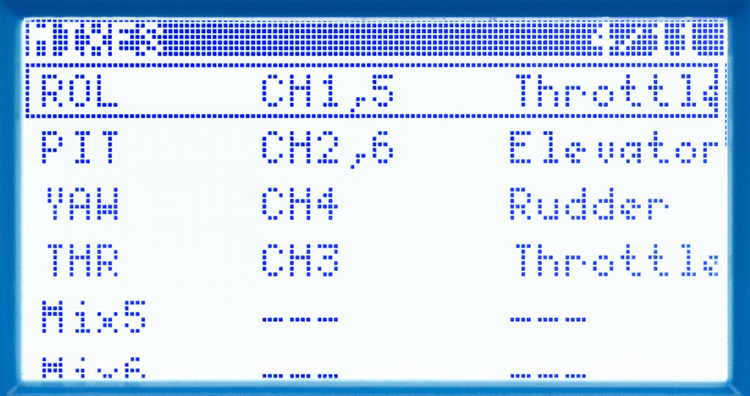
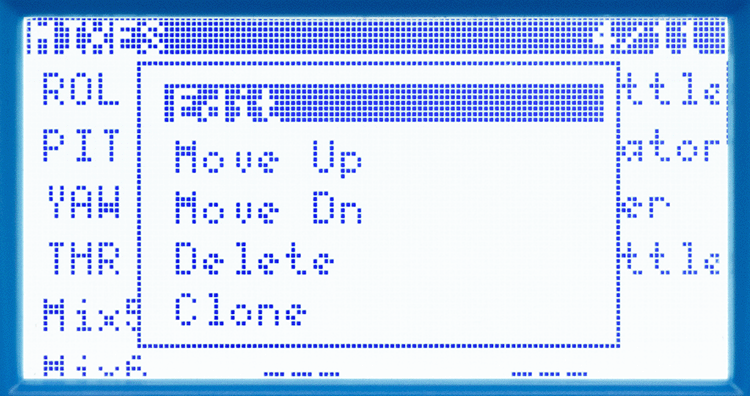
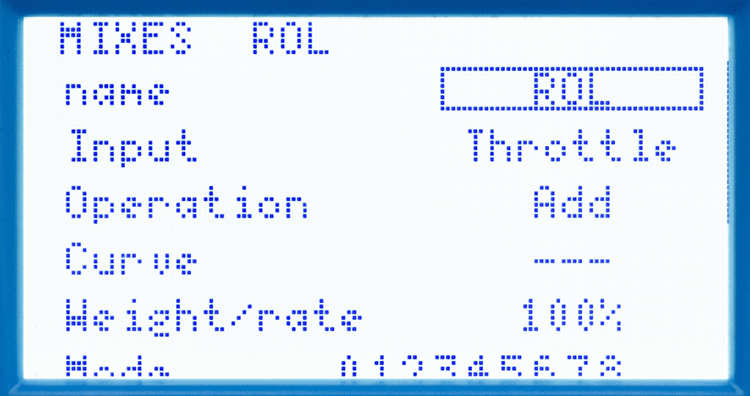
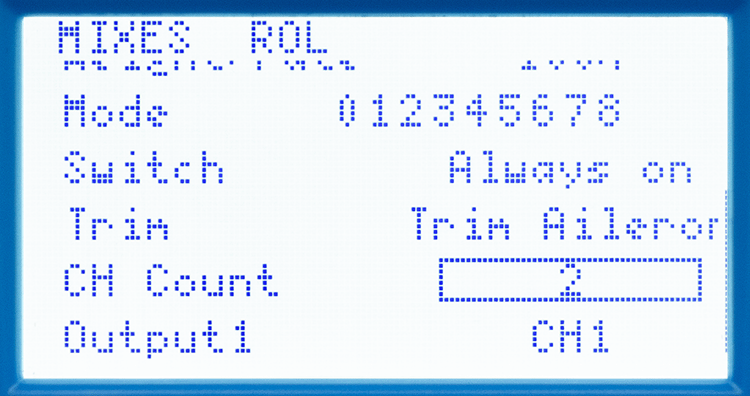
This menu contains 32 possible channel mixes. First slots are automatically filled in during the model creation. They act as a solo or multi-channel modifier controlled by a switch or channel value with various settings available.
Turn the KNOB to navigate through the Mix slots.
Press KNOB button to open the mix slot options.
Press BACK button to return to the first Mix, and press it a second time to return to MODEL SETTINGS.
- Edit
- Name allows you to set a custom 3-character name for each Mix.
- Input selects the source value processed by the mix. Switch separately controls whether the mix is active.
- Operation sets how different inputs multiplex with the control channel.
- Add – the Mix value and the channel value are summed/added up.
- Multiply – the Mix value and the channel value are multiplied.
- Replace – the Mix value completely overrides the channel value.
- Curve allows you to choose a preset curve (CV1–CV32) for controlling the Mix.
- Weight/rate is used to blend the control movements for an optimal control feel and authority.
- Mode sets, in which of the 9 flight modes is the Mix active.
- Switch selects which switch position activates the Mix, or whether it is always on.
- Trim selects the physical trim to use for trimming the Mix.
- CH Count sets the number of channels the selected Mix uses.
- Output 1–24 sets the channel, which is controlled by the Mix.
- Move Up or Move Dn the mix in the list (swapping positions with the above or below Mix).
- Delete the Mix.
- Clone this Mix. It creates a new Mix in the next free slot with the same settings.
Outputs
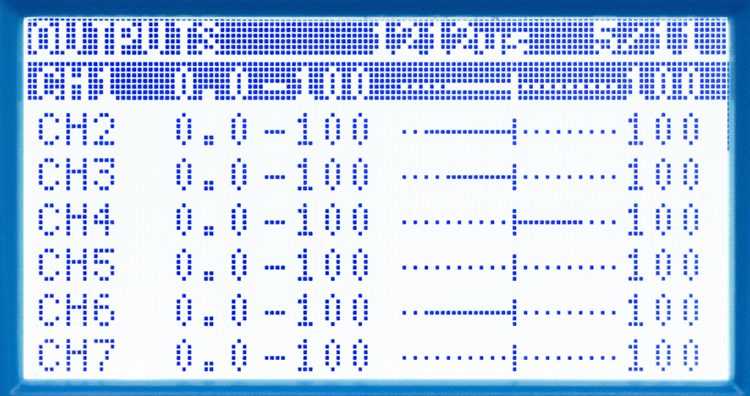
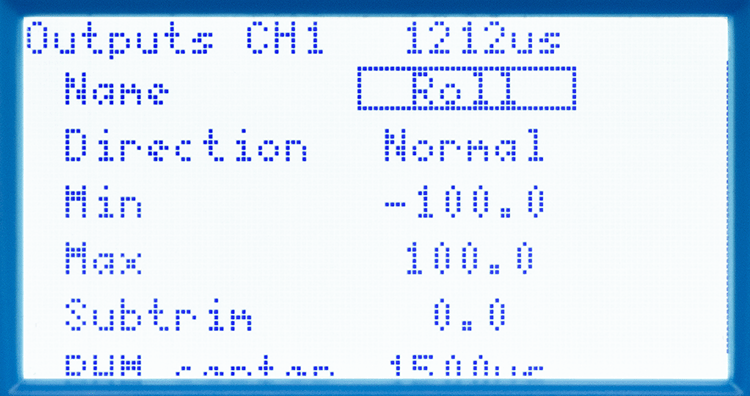
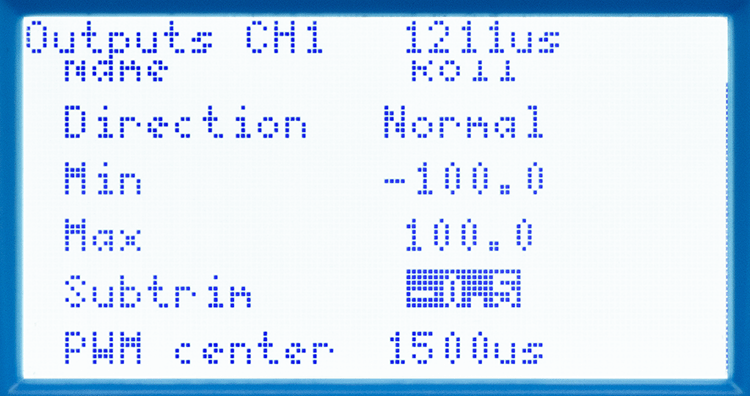
The outputs menu contains the options to adjust each output channel's values.
Turn the KNOB to navigate through the channels CH1–CH24.
Press KNOB button to open the slot's options.
Press BACK to return to the first output channel, and press it again to return to MODEL SETTINGS.
- Name sets a custom 3-character name of the channel.
- Direction inverts the operation direction of the channel.
- Min sets the channel's lower value limit.
- Max sets the channel's upper value limit.
- Subtrim applies a subtrim to the output channel.
- PWM Center sets the channel's PWM signal neutral value.
Curves
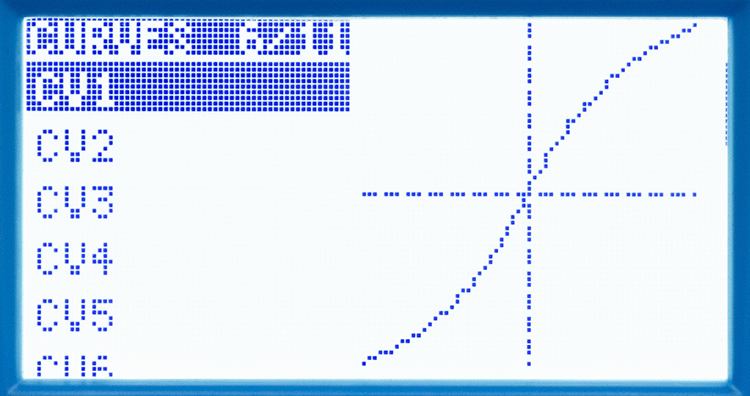
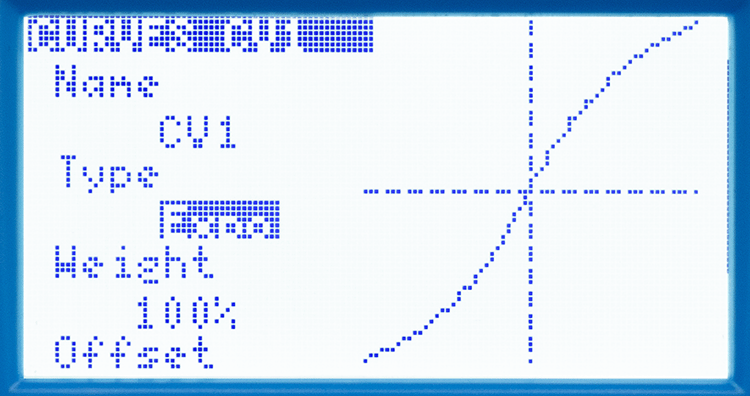
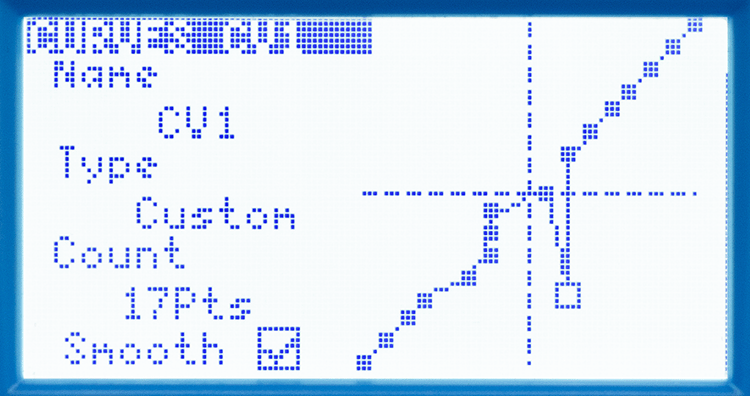
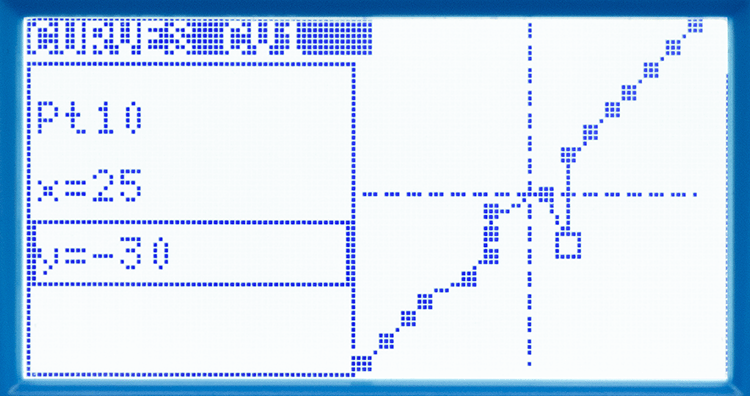
The curves menu allows you to set up to 32 custom channel output curves.
Turn the KNOB to navigate through the curve slots CV1–CV32.
Press KNOB button to open the curve's options.
Press BACK button to return to the curves list, and press it a second time to return to MODEL SETTINGS.
- Name sets a custom 6-character name of the curve.
- Type sets the type of the curve:
- Standard allows adjusting the curve in up to 17 points. Each point can be shifted on the vertical (y) axis only.
- Custom allows adjusting the curve in up to 17 points. Each point can be shifted on the vertical (y) and horizontal (x) axes.
- Count sets the number of adjustable points on the curve.
- Smooth makes the curve rounded at the tangents of the points, removing the sharp angles.
- Expo sets the exponential curve without points.
- Height sets the limits on the vertical axis, decreasing the maximum throw.
- Offset shifts the curve along the vertical axis.
- Expo changes the slope of the curve.
Logic switches
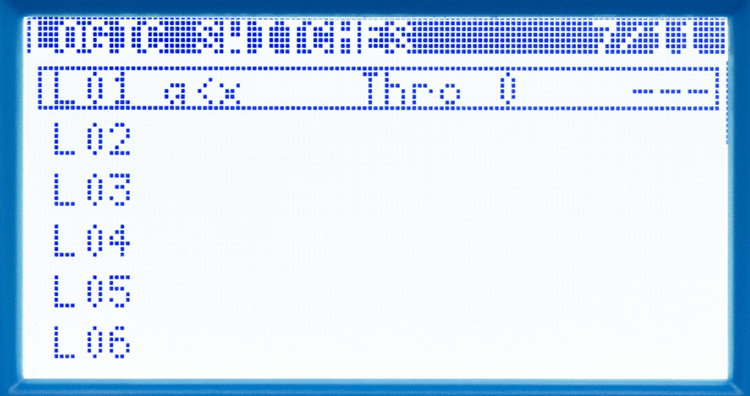
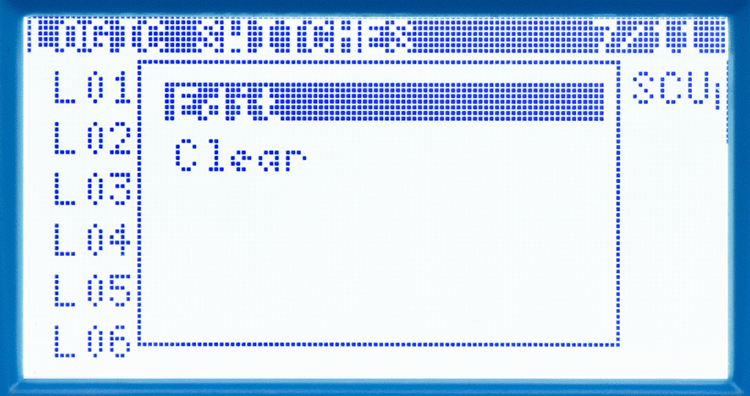
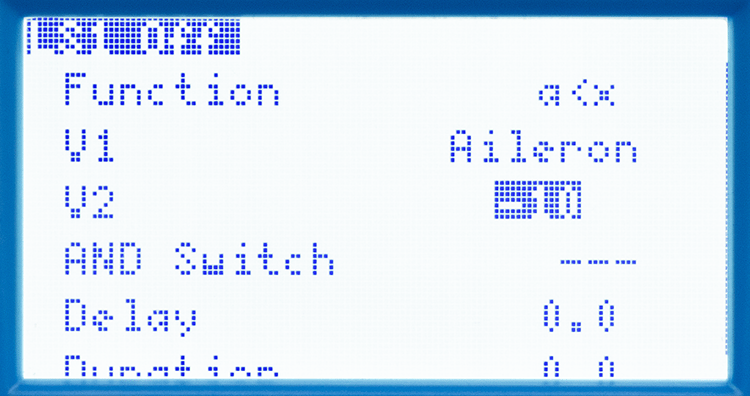
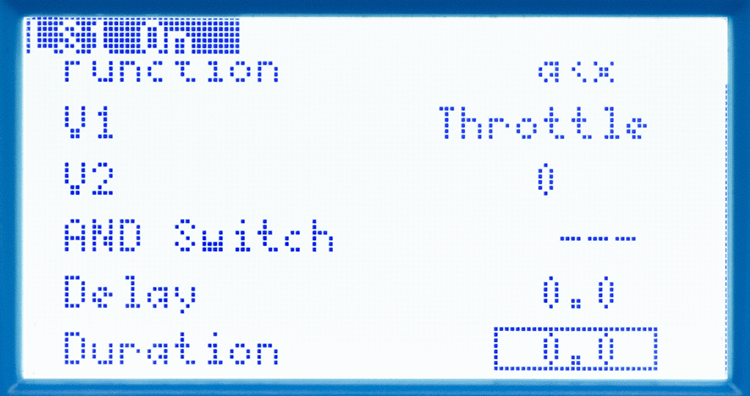
This menu allows setting up 32 logic switches. They are defined by a logical expression and can be assigned as a regular switch.
Turn the KNOB to navigate through the logical switch slots LS1–LS32.
Press KNOB button to open the switch options.
Press BACK button to return to the logic switches list, and press it a second time to return to MODEL SETTINGS.
- Function selects the logical expression that defines ON/OFF condition.
- V1 defines the first variable in the logical expression.
- V2 defines the second variable in the logical expression.
- AND Switch adds an enabling condition: the logical result is active only while this condition is also true.
- Delay sets the delay before the logic switch switches ON after matching the condition.
- Duration sets the time logic switch stays ON after matching the condition.
| Function | Active condition |
|---|---|
| a=x | ON when the source V1 exactly matches the set constant V2. |
| a≈x | ON when the source V1 approximately matches the set constant V2. |
| a>x | ON when the source V1 is greater than the set constant V2. |
| a<x | ON when the source V1 is smaller than the set constant V2. |
| ❘a❘>x | ON when the source V1's absolute value is greater than the set constant V2. |
| ❘a❘<x | ON when the source V1's absolute value is smaller than the set constant V2. |
| AND | ON when both sources V1 and V2 are true. |
| OR | ON when either of sources V1 and V2 is true. |
| XOR | ON when sources V1 and V2 do not match. |
| Edge | Momentary logical event; trigger and timing settings require confirmation for this ECOS version. |
| a=b | ON when the source V1 exactly matches the source V2. |
| a>b | ON when the source V1 is greater than the source V2. |
| a<b | ON when the source V1 is smaller than the source V2. |
| d>x | ON when the difference of changed values of the source V1 is greater than the constant V2. |
| ❘d❘>x | ON when the absolute difference of changed values of the source V1 is greater than the constant V2. |
| Timer | ON and OFF in a cycle with a duration of constant V1 and a delay of constant V2. |
| Sticky | Latched logical state; set/reset input behaviour requires confirmation for this ECOS version. |
Special functions
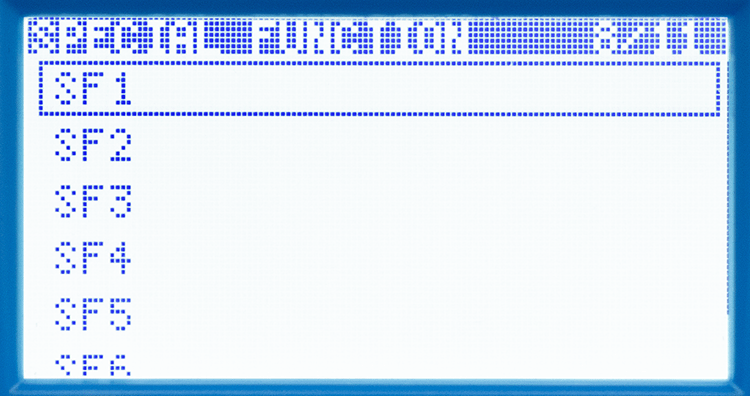
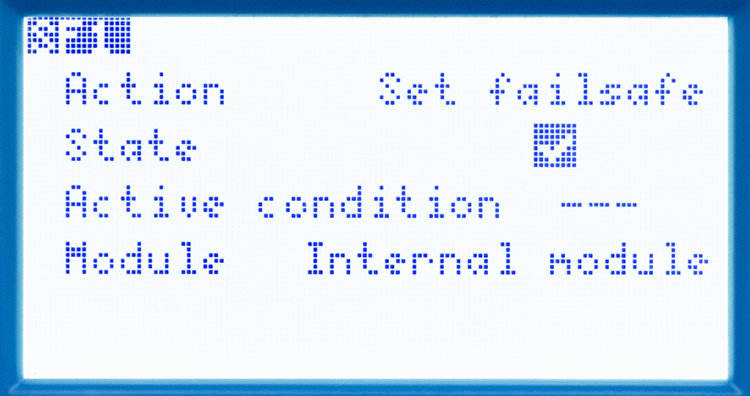
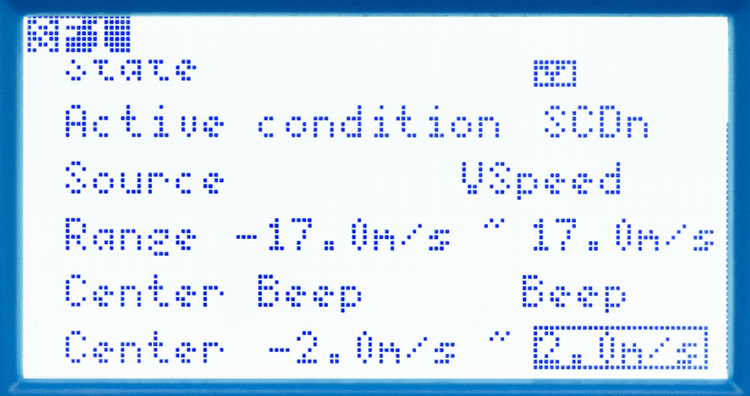
This menu allows assigning up to 7 special functions.
Turn the KNOB to navigate through the special functions slots SF1–SF7.
Press KNOB button to open the special function options.
Press BACK button to return to the special functions list, and press it a second time to return to MODEL SETTINGS.
- Action chooses the function.
- Reset resets the timers.
- Reset defines which timers to reset.
- Set failsafe sets the Fail-safe emergency rates.
- Module defines which module's Fail-safe settings to use.
- Play vario enables the vario telemetry beeps.
- Source chooses the vario channel.
- Reset resets the timers.
- State enables the special function.
- Active condition sets the conditions for activating the special function.
Trainer
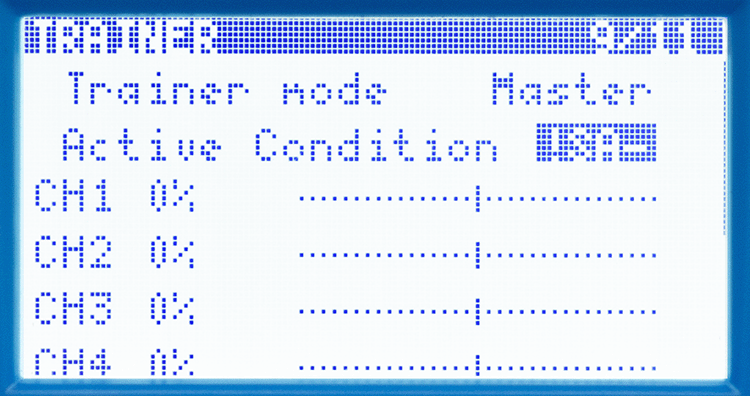
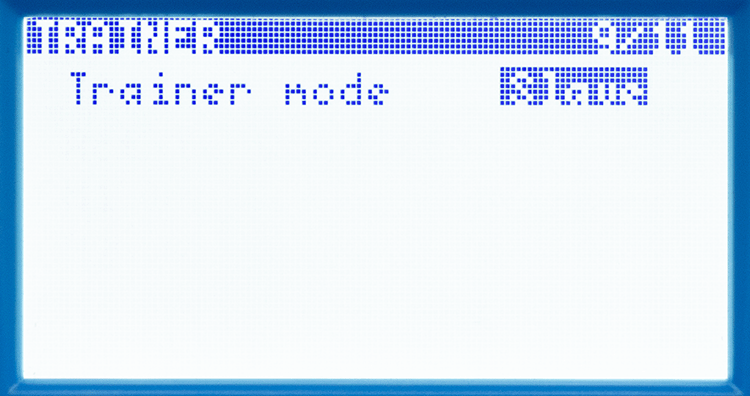
This menu contains trainer mode settings. Trainer mode is supported via a cable with 3.5mm stereo jack plugs.
Press KNOB button to open the Trainer options.
Press BACK button to return to MODEL SETTINGS.
- Trainer mode
- Master – instructor transmitter controlling the model.
- Active condition selects when student inputs are accepted by the master. Check handover and immediate instructor recovery on the ground, with motor operation prevented.
- Slave – student transmitter supplying control inputs.
- Master – instructor transmitter controlling the model.
Telemetry
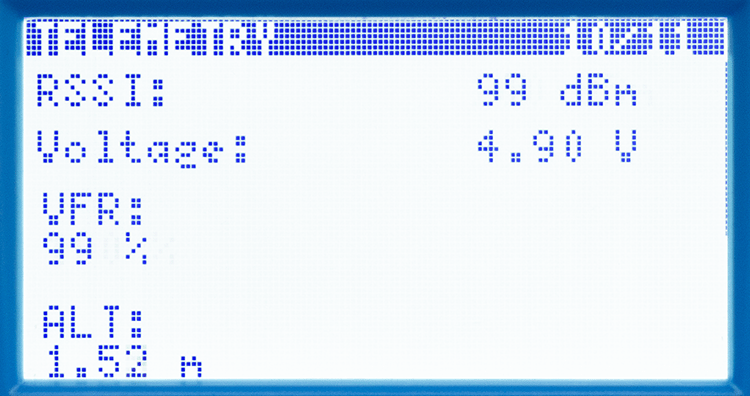
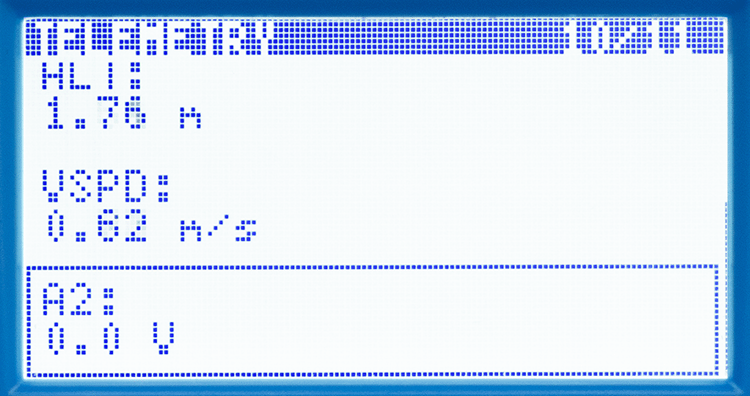
This menu displays the overview of the telemetry data received.
Radio settings
Radio setup
Date
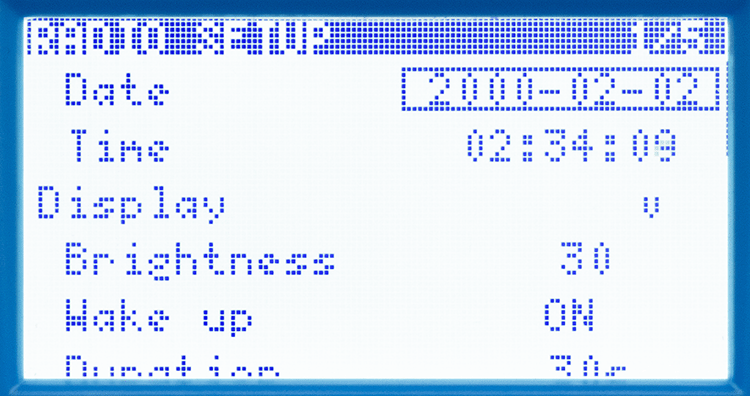
Sets the date in the radio.
List through the years, months and days slots using the KNOB button.
Turn the KNOB to list through the values of each slot.
Press BACK button to return to RADIO SETUP.
Time
Sets the time in the radio.
List through the hours, minutes and seconds slots using the KNOB button.
Turn the KNOB to list through the values of each slot.
Press BACK button to return to RADIO SETUP.
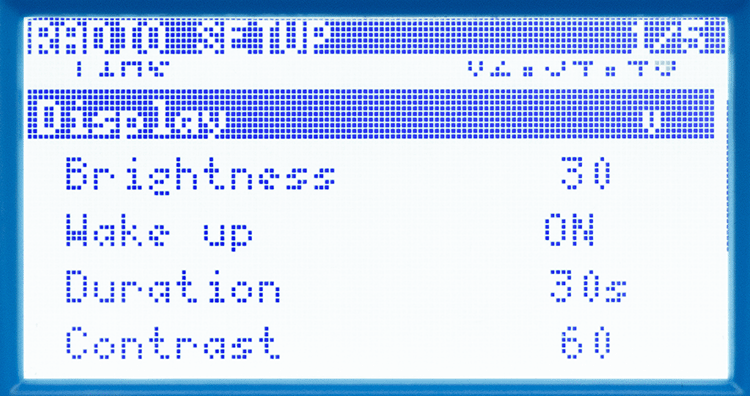
Display
- Brightness sets the intensity of the display's backlight.
- Wake up sets the condition for turning the backlight on.
- ON – the backlight is always ON.
- Keys – key operation turns the backlight on.
- Ctrl – the backlight is turned on by moving the controllers.
- Both – either key operation or control movement turns the backlight on.
- OFF – the backlight is always OFF.
- Duration sets the time for how long the backlight stays ON.
- Contrast sets the background and character colour intensity difference.
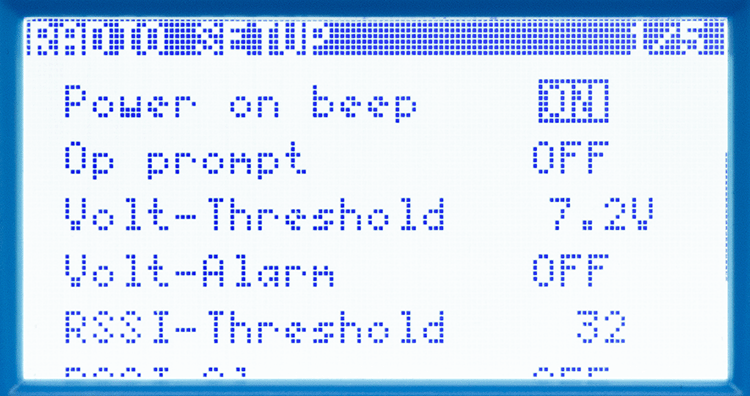
Buzzer
- Power on beep enables the beep alert when the radio turns ON.
- Op prompt enables the beep when a key is pressed.
- Volt-Threshold sets the battery voltage value that triggers the alarm.
- Volt-Alarm enables the battery voltage alarm.
- RSSI-Threshold sets the reception signal strength value that triggers the alarm.
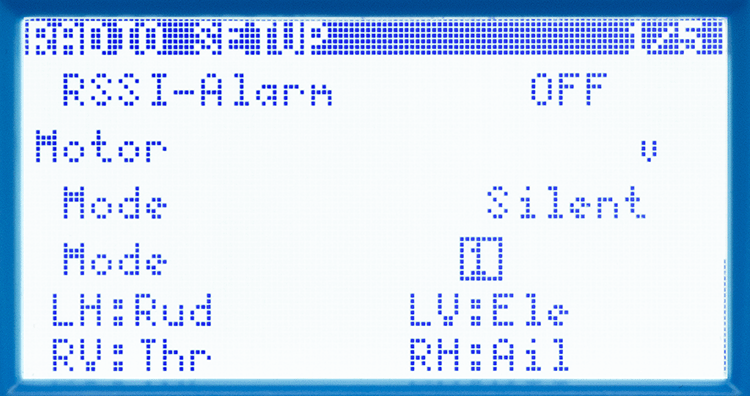
- RSSI-Alarm enables the reception signal strength alarm.
Motor
- Mode sets when the haptic feedback is triggered.
- Silent – vibrations are OFF.
- Alarms only – vibrates only when alarm is triggered.
- Always – vibrates with each beep.
Mode
Sets the mode of your radio in software. Make the corresponding mechanical gimbal adjustments described in the quickstart guide, then recalibrate and check every control.
Hardware
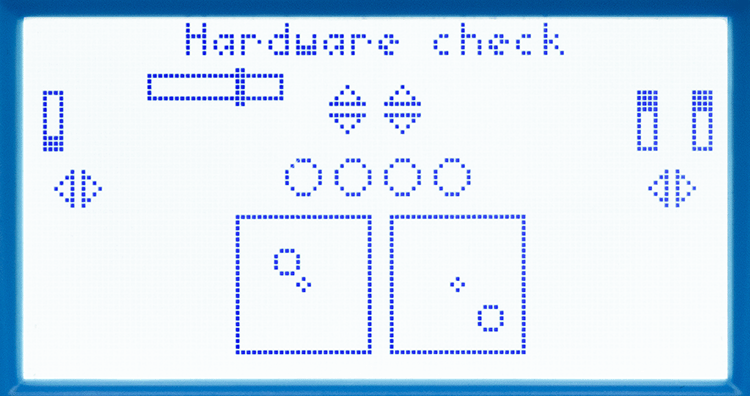
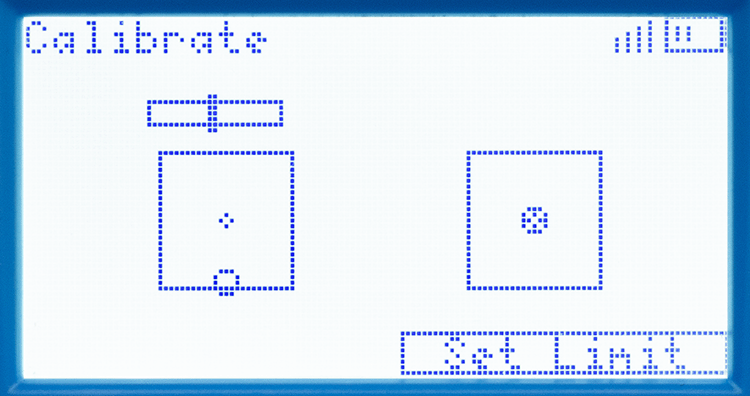
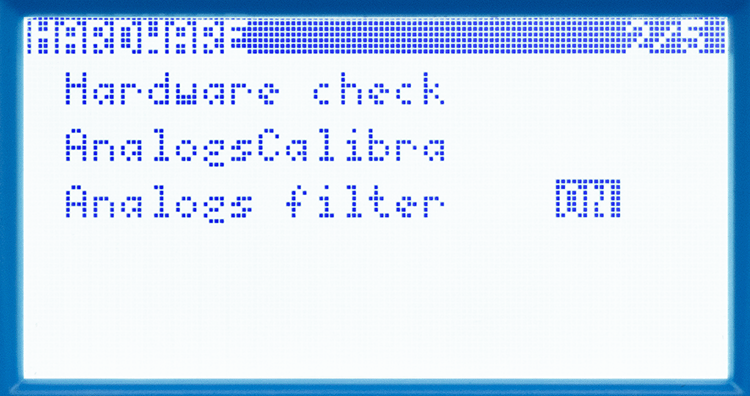
- Hardware Check is a user interface indicating the controls of each analogue controller.
- Analogs Calibration is used to calibrate the neutral and end positions of each analogue controller
- Analogs filter enables the filter of micromovements of each analogue controller.
Info
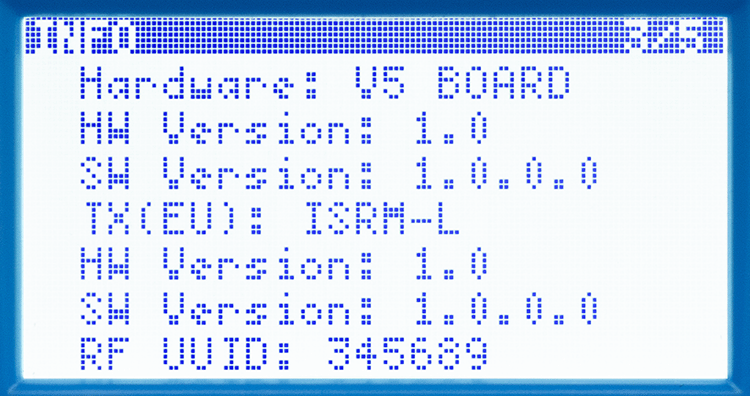
User interface displaying the firmware and hardware versions and advanced info.
Device config
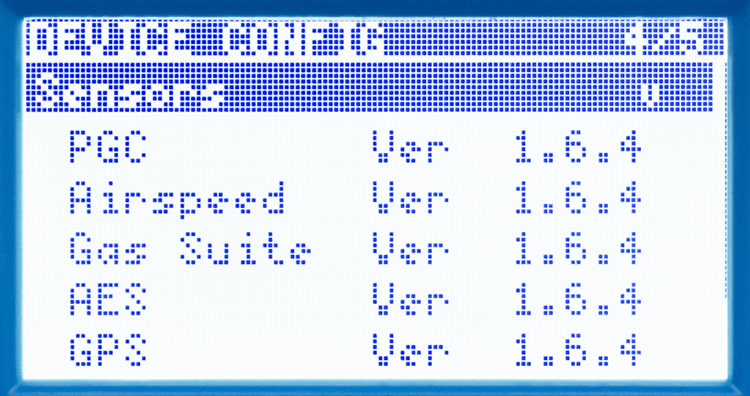
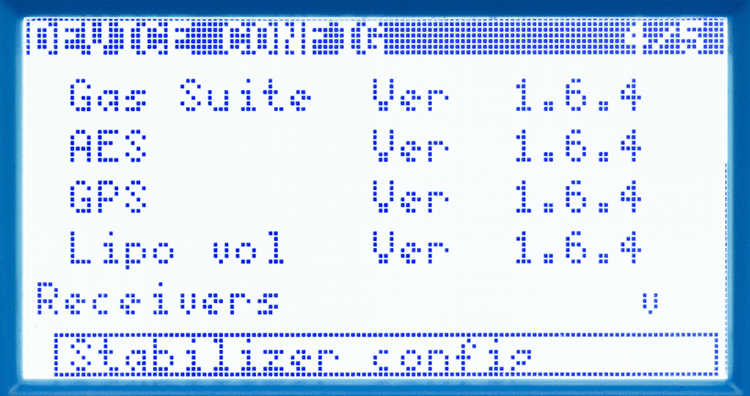
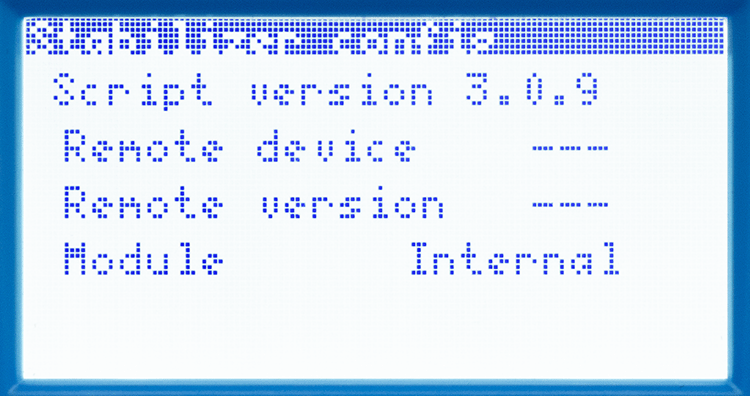
This menu contains the options for setting up the telemetry sensors and receivers.
Sensors
This menu contains the options for setting up the telemetry sensors and their properties, if supported.
Receivers
This menu contains the options for setting up the receivers and their properties, if supported.
Telemetry display
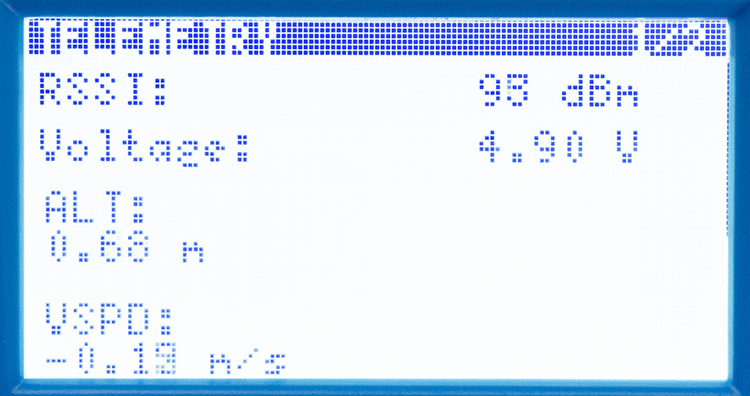
A user interface displaying the real-time telemetry data received.
Function setting examples
This section directly describes the steps of setting the basic functions in real-life examples.
Dual rates via Flight Modes and Mixes
Flipping the switch SB to the UP position decreases the maximum rates of the ailerons from 100 % to 50 %.
In this example, we want to switch between flight modes FM0 and FM1 by flipping the switch SB. FM0 is the general flight mode active by default (when no other flight mode is active).
We are setting two mixes: the default with 100 % rates, only effective in the default FM0, and a second mix with 50 % rates on ailerons, only effective in FM1.
- Setting the Flight Modes
- Navigate to Model Settings → Flight Modes → FM1
- Set the switch option to SBUp
- Return to the Main View
- Setting the Mixes
- Navigate to Model Settings → Mixes
- Clone the Mix ROL. It creates a new mix in the next free slot, in this case Mix5, with the same settings.
- Open the Mix5 Edit menu.
- Set the item Weight/rate to 50 %
- Set the Mode only for the FM1 by turning all flight-mode numbers OFF, except the 1.
- Return to the Mixes menu
- Open the default FM0 mix ROL Edit menu.
- Set the Mode only for the default FM0 by turning all flight-mode numbers OFF, except the 0.
- Return to the Main view
The dual rates controlled by the switch SB are now set. Don't forget to check the operation and channel output values:
Open the Channels monitor by pressing the ENTER button on the Main view. Move the aileron stick fully left or right and flip the switch SB from the DOWN position to UP position. At full stick travel, the ROL output magnitude should decrease from 100 % to 50 % in both directions. The sign depends on stick direction and channel reversal. Then complete control-direction, fail-safe and range checks before flight.
Appendix
Related documentation
Use the V10 quickstart guide for hardware instructions, maintenance, safety, recycling, declaration of conformity and warranty conditions. Receiver and sensor settings must also comply with the manual for the connected device.
Firmware review
Some advanced options in the legacy documentation remain unverified. Record the version shown under Info when requesting technical support, and confirm unsupported settings before using them to control a model.