KAVAN Smart PRO T75 Dual battery switch with telemetry expander - Instruction manual
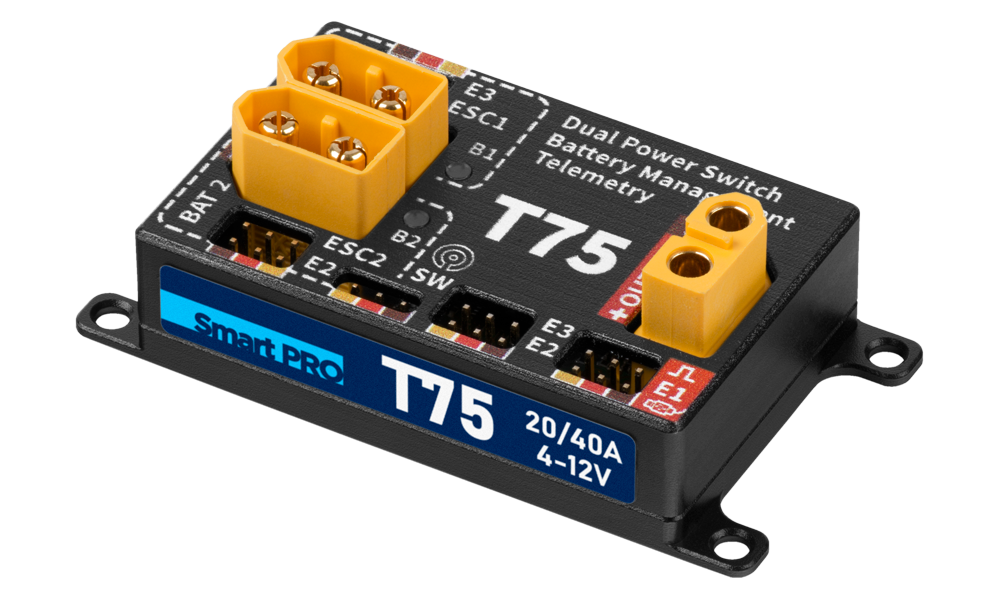
KAVAN Smart PRO T75 Dual battery switch with telemetry expander
Introduction
The KAVAN Smart PRO T75 is a high-performance digital dual battery backer with advanced telemetry features. It contains a charging circuit and touch switch functionality. The battery switch is ideal for mid-size models that use high-voltage servos without voltage stabilisation.
It is suitable for models equipped with dual receiver batteries or an ESC battery eliminator circuit (BEC) used as a primary power source, combined with a small backup battery. The battery switch prefers its primary battery input, and in case of a voltage drop it automatically switches to the secondary input. The charging circuit may be optionally enabled to charge the secondary battery from the primary input/BEC.
The device is designed to turn on/off the electronics in your model, it can replace a mechanical switch as well. The battery switch remembers its last operating state, and if the battery is accidentally disconnected, it will automatically boot up as soon as the battery is connected again.
Features
- Intelligent dual battery backer/multiplexer with configurable voltage switchover threshold.
- Touch switch function. Optionally, the possibility of connecting a magnetic, mechanical or electronic switch or button.
- FPort, Duplex EX, S.Bus2, MSB, HoTT, P²Bus telemetry support (current, voltage, capacity of both battery inputs).
- Optional charging of the secondary battery.
- Remembers the last operating state.
- Two expansion ports allowing connecting additional Duplex EX/EX Bus sensors. Alternatively, the ports offer digital inputs/outputs functionality.
- Configuration through the transmitter or MAV Manager PC software.
- Firmware updates.
Technical specifications
| Dimensions | 56×36×16 mm |
|---|---|
| Weight (incl. cables) | 55 g |
| Connectors | XT60 |
| Continuous current | 20 A |
| Peak current (2 s) | 40 A |
| Standby current | 100 µA |
| Operating current | 40 mA |
| Charging current for Batt.2 | up to 200 mA |
| Operating temperature | −20–85 °C |
| Supply voltage | 4–12.6 V |
| Recommended supply voltage | 5–8.4 V |
| Telemetry | KAVAN/FrSky FPort, JETI Duplex EX, Multiplex MSB, Graupner HoTT, Futaba S.Bus2, PowerBox P²Bus |
| Telemetry expander | 2 Extension ports: Duplex EX/EX Bus |
| Touch switch support | Yes |
| BEC | No |
| Selectable Touch/Mechanical/RC switch | Yes |
| Status LED | Yes |
Main section
Installation
Plug the battery switch between the receiver and a primary battery/BEC. Connect the secondary battery to the B2 input. Choose a suitable installation type and pay attention to the corresponding connection diagram.
Dual battery installation (without BEC)

The E2/E3 ports on the receiver side may be used for additional EX/EX Bus sensors. The sensors are switched ON/OFF in the same way as the receiver. In this case, do not connect any devices to the E2/E3 ports on the battery-inputs side.
Installation with ESC BEC and a backup battery

Use an ESC with a BEC or a separate regulated supply within the input-voltage limits. The legacy diagrams below label an OPTO ESC as a BEC source; an OPTO ESC does not provide a BEC output. Do not connect its high-voltage propulsion supply to the T75 battery inputs.
Use the E3 port at the battery-inputs side for the ESC telemetry. In addition, you can pass the throttle signal between the receiver and the ESC through the ESC1 connection of the T75. The E2 port at the receiver side may be used for an additional EX/EX Bus sensor. In such a case, do not connect any device to the E2 port at the battery-inputs side.
Any device connected at the battery-inputs side will drain the battery even after T75 switches off!
Dual ESC installation

Use the E2/E3 ports at the battery-inputs side for the ESC telemetry. In addition, you can pass the throttle signal between the receiver and each ESC through the ESC1/ESC2 connections of the T75. Don't connect any devices to the E2/E3 ports at the receiver side.
Optional mechanical/electronic switch connection

If using the device in combination with R3/RSW Wireless Switch you have to change the T75 setting from „Touch“ to „Electronic“ switch option. For long-term storage, the backup battery has to be disconnected due to the constant load of the R3/RSW Wireless Switch.
A compatible Magnetic switch (KAV32.32004) is available as an accessory.
Battery backup function

The battery switch generally uses its primary battery input B1 as a main power source. If the B1 voltage drops below the configured Voltage threshold value, it can switch to the B2 input. In such a case, the source with a higher voltage will be used. As soon as the B1 voltage returns above the threshold value (+ additional hysteresis), the T75 switches automatically back to B1, no matter the voltage of the B2 input. There are several applications where the user can benefit from the T75:
- ESC-Battery combination: Set the Voltage threshold value below the voltage of the battery eliminator circuit (BEC). In this case, the BEC output will be used exclusively while the secondary input (B2) will act just as a backup battery. Please note that both the ESC BEC and the backup battery must handle the full load of the attached servos.
- Equal dual battery discharging: Set the Voltage threshold value above the maximum battery voltage. Both batteries will be discharged equally keeping equal voltage. The batteries need to have the same chemistry, number of cells and similar capacity. Set the Voltage hysteresis value to correspond to the battery properties (LiPo/Li-Ion – high or medium, LiFe – medium or low).
The T75 always drains power from a single battery input. This solution is robust against a spontaneous battery short circuit. The active battery input is marked with a red LED.
Each power source must be able to supply the full servo load independently. The switch does not regulate the output voltage; observe the voltage limits of the receiver and servos.
Battery charging circuit
The battery switch contains a charging circuit for a 2S LiPo/Li-Ion or 2S LiFe backup battery, without cell balancing. The charging may be optionally enabled to keep the backup battery (B2) always ready without needing to remove it from the model (however, we recommend charging the battery with a balancer at least once a month). Several safety conditions are used during the charging:
- The B1 voltage must be higher than the B2 voltage and the B1 must be selected/indicated by the LED.
- The B2 voltage must be within the specified limits (5.5–8.3 V for LiPo/Li-Ion; 5.0–7.1 V for LiFe).
- The T75 never charges to a full capacity.
- The voltage difference must be lower than 5 V.
- The temperature must be below 70 °C.
The charging circuit does not balance the cells or fully charge the backup battery. Charge and balance the battery with a suitable external charger at least once a month.
Extension ports
The battery switch offers two configurable JR-type extension ports. The installation diagrams identify the physical ports as E2/E3; the legacy configuration menu and compatibility table below use E1/E2. Confirm the menu-to-connector mapping for your device before enabling digital outputs. These ports allow you to extend the device functionality in combination with some RC systems.
- Expander EX – useful if you need to connect additional Duplex EX/EX Bus sensors to the battery switch.
- Digital Input – the state of the signal pin is transferred back to the transmitter over the telemetry channel.
- Digital Output – the state of the signal pin depends on the value of the appropriate bus channel (logic 1 above 1.5 ms).
| Extension port | Expander EX | Digital Input | Digital Output |
|---|---|---|---|
| E1 | Duplex EX/EX Bus | Duplex EX/EX Bus, P²Bus telemetry | EX Bus, S.Bus2, P²Bus |
| E2 | Duplex EX/EX Bus | Duplex EX/EX Bus, P²Bus telemetry | EX Bus, S.Bus2, P²Bus |
Touch switch
Installation inside the fuselage.

Installation on top of the fuselage.

Touch switch behaviour

- Place the touch button anywhere on your model on a surface made of nonconductive material. You can place the touch button also inside the fuselage with a maximum thickness of up to 3 mm.
- Make the status LED visible from outside the fuselage and put the „touch“ sticker on top of the touch surface.
- Connect the receiver battery to the battery switch and briefly touch the button. The status LED should blink once. If not, please increase the touch sensitivity parameter in the configuration.
- Touch and hold the button for about 2 seconds. After the initial blink, the LED will start blinking again. At this moment, release the button. The main output will be activated.
Telemetry and settings

The battery switch is compatible with JETIBOX/SMART-BOX and you can use it for programming. The JETIBOX menu is divided into three sections:
- Actual values – displays the latest telemetry values (current, voltage, capacity, temperature) including minimums and maximums.
- The main screen shows the device temperature with the voltage and current of the active battery. If the charging is enabled and active, the „CHG“ status is displayed.
- In the Capacity screen, you can press ⮜ + ⮞ buttons simultaneously to reset the measured capacity. The asterisk marks the active battery input.
- The „Time“ screen shows a cumulative time of the primary and secondary battery input, meaning how long each source has been used to power the device.
- Reset Min/Max – simultaneously press ⮜ + ⮞ buttons to reset all minimums and maximums.
- Settings – basic settings of the sensor
- Language – you can choose the language of the JETIBOX screen.
- Switch type (Touch/Electronic/Mechanical/Hall/Button). You can specify which type of switch will be used to turn the device on and off. If you choose the Electronic option, you can connect any electronic switch with voltage output (e.g. magnetic or radio-controlled switch).
- Touch sensitivity – if the integrated touch switch is used, you can increase or decrease its sensitivity by editing this value. Please note that increasing the sensitivity will allow you to install the battery switch directly inside thicker fuselages. On the other hand, this will also make the touch sensor more vulnerable to erroneous inputs.
- Voltage threshold – specifies the switchover voltage for B1 and B2 inputs, see Battery backup function.
- Voltage hysteresis – this parameter is taken into account when switching supply from one battery to the other and back. It is important to keep the hysteresis low to enable equal discharging of batteries. On the other hand, it must be high enough to prevent fast battery switching under load. There are three possible options:
- High hysteresis (LiPo) – approx. 1.2 V. This is a default and recommended option for LiPo(Li-Ion)/LiPo(Li-Ion) or ESC-LiPo(Li-Ion) combination. This option can be used together with batteries of high internal resistance.
- Medium – approx. 0.5 V. This option can be used for equal discharging low-resistance LiPo(Li-Ion) batteries.
- Low (LiFe) – approx. 0.3 V. Use this option together with low-resistance LiFe batteries.
- Capacity reset – Setting up this parameter will specify at which moment the capacity is reset to zero. Available options:
- Power-On (default) – capacity is reset every time after connecting the battery.
- Voltage-Change – capacity is reset after connecting the battery with a different voltage (by 15 % or more). This way the sensor may distinguish between charged and discharged battery.
- Manual – capacity is never reset automatically.
- Charging – you can enable the charging function for 2S Li-Ion/LiPo or 2S LiFe secondary battery (B2).
- E1/E2 Function – choose the preferred function of the two extension ports (possible options: EX/EX Bus telemetry input, digital input, digital output).
- E1/E2 Out Channel – if the digital output function is selected, it is necessary to choose the appropriate channel.
- Service – In this menu you can view the device version and reset it to the default factory configuration.
JETIBOX menu structure

Graupner HoTT menu structure

The battery switch offers telemetry as an „Electric Air Module“.
Futaba and Multiplex connection
Futaba and Multiplex systems do not offer wireless device configuration. The telemetry transmission uses the following published sensor-slot mapping:
| Parameter | Futaba S.Bus2 | Multiplex MSB |
|---|---|---|
| Current 1 | 2 | 3 |
| Voltage 1 | 3 | 2 |
| Capacity 1 | 4 | 4 |
| Current 2 | 5 | 6 |
| Voltage 2 | 6 | 5 |
| Capacity 2 | 7 | 7 |
| Note | Manual detection in the menu Linkage – Sensor. Choose S1678 current sensor on slots 2 and 5. | Automatically detected by the transmitter. |
Firmware update

Firmware updates for the battery switch are transferred from a PC via the USB interface.
The required programs and files are available at www.mavsense.com.
Install the MAV Manager software and the USB drivers on your computer. Check the system requirements.
- Disconnect all devices attached to the battery switch.
- Connect the USB interface to your PC, run MAV Manager, open Tools → Device Updater and select the correct COM port.
- Connect the battery switch to the USB interface through its receiver-side E1 telemetry port.
- Apply external power to the battery switch via B1 or B2 battery inputs.
- Select the appropriate
*.BINfile and press Update. - Wait for the update to complete, then disconnect the device.
The legacy connection illustration shows Mini-USB. For the current USB-C interface, use a USB-A to USB-C data cable; follow the connected device’s manual for the correct device port and any external power supply.
PC configuration
It is possible to use the MAV Manager software (1.7.0 and later) to conveniently configure all device settings, display real-time telemetry and make a backup copy of your settings. The configuration toolbar contains the following buttons, shown in (Fig. 14):
- Refresh – forces the configuration to be reloaded from the device.
- Import – imports the settings from a file. If you have several devices and want all of them with identical settings, import the same settings to each device.
- Export – exports the settings from the device to a file. You can easily create a backup configuration stored on your PC. After creating a backup, you may easily experiment with the settings and later revert to the original configuration by pressing the Import button and choosing the original exported file.
- Reset default – resets the device to factory defaults and reloads all the settings.

Connect the battery switch to your PC using the USB interface. The MAV Manager will automatically detect it.

The device properties are available after pressing the Configure button.

Real-time telemetry with min/max values. The MAV Manager is also able to create a log file from the real-time telemetry data, which can be viewed, analyzed, imported and exported.

Battery switch settings. Every time you make any change in the configuration, the new value is immediately transferred to the device and saved to memory. There is no need for additional confirmation.

Telemetry slot settings.
Safety information
- Protect the device from moisture, dust and prolonged direct sunlight.
- Always operate the battery switch in a dry environment and within the device limits stated in this guide. Never expose the device to excessive heat or cold.
- Do not remove the enclosure from the device and do not try to implement any changes or modifications. It may result in damage to the product and denial of any warranty claims.
- Always check the polarity of the cables. Never reverse the polarity – it may result in damage to the product.
- Always use a sufficient power source according to the consumption of the attached servos. Never exceed the maximum allowed operating voltage of the attached servos.
Appendix
Manufacturer
KAVAN Smart PRO T75 Dual battery switch with telemetry expander is made in Czechia by MAV Sense s.r.o.
E-mail: info@mavsense.com | Web: www.mavsense.com
Recycling and waste disposal note (European Union)
Electrical equipment marked with the crossed-out waste bin symbol must not be discarded in the domestic waste; it should be disposed of via the appropriate specialised disposal system. In the countries of the EU (European Union) electrical devices must not be discarded via the normal domestic waste system (WEEE - Waste of Electrical and Electronic Equipment, Directive 2012/19/EU). You can take your unwanted equipment to your nearest public collection point or recycling centre, where it will be disposed of in the proper manner at no charge to you. By disposing of your old equipment in a responsible manner you make an important contribution to the safeguarding of the environment.
EU declaration of conformity (European Union)
Hereby, KAVAN Europe s.r.o. declares that the KAVAN Smart PRO T75 Dual battery switch with telemetry expander is in compliance with the essential requirements as laid down in the EU directive(s) concerning electromagnetic compatibility. The full text of the EU Declaration of Conformity is available at www.kavanrc.com/doc.
Guarantee
The KAVAN Europe s.r.o. products are covered by a guarantee that fulfils the currently valid legal requirements in your country. If you wish to make a claim under guarantee, please contact the retailer from whom you first purchased the equipment. The guarantee does not cover faults which were caused in the following ways: crashes, improper use, incorrect connection, reversed polarity, maintenance work carried out late, incorrectly or not at all, or by unauthorised personnel, use of other than genuine KAVAN Europe s.r.o. accessories, modifications or repairs which were not carried out by KAVAN Europe s.r.o. or an authorised KAVAN Europe s.r.o., accidental or deliberate damage, defects caused by normal wear and tear, operation outside the Specification, or in conjunction with equipment made by other manufacturers. Please be sure to read the appropriate information sheets in the product documentation.
For service, contact the retailer from whom you purchased the product. Use the original packaging if available. Include a dated description of how the product was used and the fault, together with your full address and telephone number.
Incorrect installation, inadequate mounting or cooling, cable strain, reversed polarity and operation beyond the specified limits are not covered. Protect the device from excessive heat, moisture and dust, and do not leave it in direct sunlight for prolonged periods.