KAVAN Smart PRO GPS2 Logger - Instruction manual
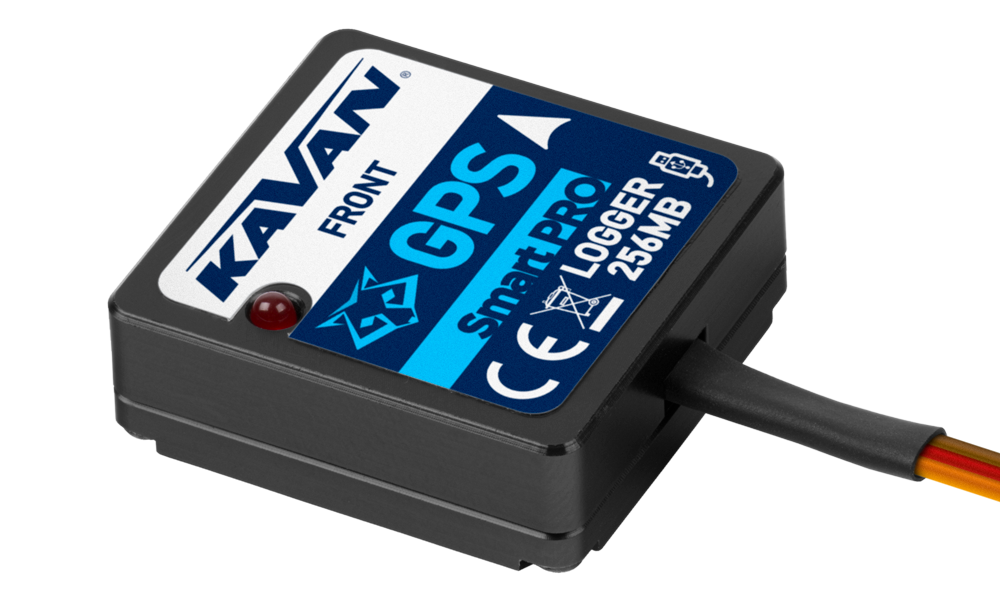
KAVAN Smart PRO GPS2 Logger
Introduction
The KAVAN Smart PRO GPS2 Logger is a telemetry device that offers fast and accurate real-time position detection and feedback. It uses multiple satellite navigation systems to achieve maximum precision and resolution. Logging all the data is possible due to its large integrated Flash memory. The logged data can be downloaded and analyzed on a computer using the free MAV Manager software.
Features
- Small dimensions, high measurement accuracy
- Large industrial memory for data logging
- Latest generation GPS chipset supporting multiple satellite systems
- 3-axis magnetometer/compass for external navigation purposes
- Backup supercapacitor for fast position fix after powering off
- Voltage measurement and logging
- Automatic telemetry detection: KAVAN/FrSky FPort, Duplex EX, HoTT, MSB, S.Bus2, P²Bus.
- Automatic timezone detection.
- Configuration through the transmitter or MAV Manager
- Firmware updates.
Technical specifications
| Parameter | Specification |
|---|---|
| Dimensions | 28×30×9 mm |
| Weight | 14 g |
| Memory | 256 MB |
| Supported positioning systems | GPS, GALILEO, GLONASS |
| Recording time (5 samples/s) | 66 hours |
| Sampling | 10 Hz, 5 Hz, 2 Hz, 1 Hz |
| Flash endurance | 100 000 erase cycles |
| Operating current | 50 mA |
| Operating temperature | −20–85 °C |
| Supply voltage | 3.5–8.4 V |
| Telemetry | KAVAN/FrSky FPort, Duplex EX, Multiplex MSB, Graupner HoTT, Futaba S.Bus2, PowerBox P²Bus |
| Status LED | Yes |
| GNSS receiver sensitivity | −167 dBm |
| GNSS max. acceleration | 4 g |
Available telemetry
The telemetry options depend on the radio control system. The complete data are automatically logged in the internal Flash memory.
| Parameter | Description |
|---|---|
| Timestamp | Current precise GPS time. |
| Latitude | Coordinate North/South. |
| Longitude | Coordinate East/West. |
| Status | Indication of activity (1 = got fix) or fault condition. |
| Satellites | Number of detected satellites. |
| Abs. altitude | Altitude above the mean sea level. |
| Distance | Distance from the „Home position“. |
| Speed | 2D/3D speed referenced to the ground. The speed type can be set in the configuration. |
| Rel. altitude | Altitude relative to the „Home position“. |
| Course | Direction of the flight (heading). Values in range 0–359°: 0° = North, 90° = East, 180° = South, 270° = West. A compass heading is used if the speed is zero. |
| Azimuth | Position of the model respecting the „Home position“. Values in range 0–359°: 0° = North, 90° = East, 180° = South, 270° = West. |
| Temperature | Internal temperature. |
| Magnetometer X/Y/Z | 3-axis magnetometer value. It can be used for further calculations. |
| Voltage | Receiver voltage (logged only). |
| Trip | Distance travelled during the flight (logged only). |
Main section
Installation

Connect the Smart PRO GPS2 Logger to the receiver telemetry port. Place the device on top of the plane, so the internal patch antenna is not shielded in any direction. Shielding materials, such as metal, carbon or anything conducting, can reduce the position detection performance. Additionally, make sure that the 2.4 GHz antennas are located at least 20 cm or more from the GPS Logger. Try to avoid any mechanical stress on the sensor and avoid any close contact with components producing heat (such as motors or speed controllers). Use a soft double-sided adhesive tape, or Velcro as an alternative.
For good performance of the integrated magnetometer, it is necessary to install the device at least 20 cm away from magnetized objects and cables powering servos/motors. In addition, please keep the device orientation respecting the flight direction as shown in (Fig. 1) (note the arrow on the device).
Power up the receiver with the GPS Logger attached. The red LED flashes once to indicate correct initialization. After a few seconds (or minutes if the device has been unpowered for a day or more), the device reports a „3D position fix“. From this moment on, the device can start logging depending on the condition set in the configuration. The logging is indicated by a flashing LED synchronously with the sampling rate.
Each time the logging is started, a new file is created at the internal Flash storage. The log files are named according to current date and time in the following format:
„GYYYYMMDD HHhNN.log“ (where YYYY = year, MM = month, DD = day, HH = hour and NN = minute). Example: G20210605 20h47.log
It is not necessary to delete old log files manually. When there isn't enough free space, the oldest log files are deleted automatically. The internal file system is robust and immune against power failures so the battery may be disconnected anytime.
Telemetry and settings
The device can be configured using JETIBOX, HoTT SMART-BOX or the corresponding transmitter menu. The JETIBOX menu is divided into three sections:
- Actual values – Displays the latest telemetry values (altitude, distance, position, temperature) including minimums and maximums.
- Reset Min/Max – Press ⮜ + ⮞ buttons together to reset all minimums and maximums.
- Settings – Basic settings of the sensor.
- Language – You can choose the language of the JETIBOX screen.
- Timezone – Press ⮜ + ⮞ to switch between automatic timezone detection and manual configuration. If the „Auto“ mode is used, the detected timezone is displayed when the sensor has a position fix. If the timezone is detected incorrectly, switch to „Manual“ mode and type the zone using ⮜ or ⮞. For example, Central Europe uses GMT+1, while US Eastern Time uses GMT−5.
- Apply DST – Set Yes if you want to use Daylight Saving Time (or Summer Time) – this function will add or subtract one hour depending on your current location.
- Speed measure – Set the „2D“ option if you need to use only ground speed measurements (walking, boat, and car). In the case of a flying model, use „3D“ measurement type to include vertical components. This parameter influences the speed, distance and trip (route) measurements.
- GPS profile – Set the GPS profile according to supposed usage. This parameter influences the accuracy and speed/latency of position detection.
- Air 1G – flying objects that do not change direction very fast (large scale models, gliders, cinematic drones...).
- Air 2G – faster-flying objects that perform basic manoeuvres (trainers, EPP...).
- Air 4G – fast-flying objects that are capable of aerobatics (3D aerobatic models, F3A, jets). Default option.
- Walk/2D – slow motion on the ground.
- Car/2D – a mode suitable for a car.
- Log period – Set the logging period according to your preferences. The maximum value (10 Hz) stores data 10 times per second and can cover all flight details. Please note that with a higher logging rate also the size of log files grows faster.
- Logging – Set the condition that must be fulfilled to start logging:
- Auto/Fix – the logging starts automatically when the position is determined (the logger gets a 3D fix).
- Auto/10kmh – the logging starts automatically when the logger gets 3D fix and the speed exceeds 10 km/h.
- Start/Stop – the logging starts after the 3D fix and speed exceeds 10 km/h. It stops after 10 s below 5 km/h.
- Home location – If „Automatic“ mode is used, the home location is determined after each startup – the position where the GPS Logger got its first position fix. The following telemetry is calculated respecting the home location: Relative altitude, distance and azimuth. In „Manual“ mode the last known home location is used and can only be changed manually.
- Set home location – By pressing the ⮜ + ⮞ arrows you can set the current GPS coordinates as a reference point. The home location is updated if you press ⮜ + ⮞ arrows on the JETIBOX main telemetry screen, independently on the Auto/Manual settings.
- Minimum satellites – Set the minimum number of detected satellites before confirming the 3D position fix.
- Startup HDOP – Set the initial required „horizontal dilution of precision“ before confirming the 3D position fix. The HDOP parameter says how much we can trust the position measurement, where a lower value is better. HDOP is dimensionless: a value of 2.0 is not an error limit of 2 m. Lower values indicate better satellite geometry.
- Service – In this menu, you can view the device version, and reset it to the default factory configuration.
- Memory/Free – Shows the available space at the internal Flash memory.
- Format – In case of a file system error, you may format the Flash memory. This procedure erases all recorded data and the configuration.
- Clear logs – Deletes all log files.
- Compass, Compass (Home) – Displays current magnetometer measurement compared to an ideal measurement, calculated based on the GPS location.
Graupner HoTT menu structure

The GPS Logger offers telemetry as a standard GPS telemetry module.
Futaba and Multiplex connection
Futaba and Multiplex systems do not offer wireless device configuration. The telemetry transmission is possible with the following fixed sensor slots:
| Parameter | Futaba S.Bus2 | Multiplex MSB |
|---|---|---|
| Speed | 8 | 9 |
| Altitude | 9 | 10 |
| Time | 10 | — |
| Vario | 11 | — |
| Latitude | 12–13 | — |
| Longitude | 14–15 | — |
| Distance | — | 11 |
| Satellites | — | 12 |
| Course | — | 13 |
| Note | Manual detection in the menu Linkage – Sensor. Choose F1675 GPS on slot 8. | Automatically detected by the transmitter. |
JETIBOX or SMART-BOX connection

Plug the GPS Logger into the sensor slot of the JETIBOX/SMART-BOX. Power it up with a battery of appropriate voltage (4.5–8.4 V). Now you can configure the sensor using ⮝, ⮟, ⮜ and ⮞ on the JETIBOX/SMART-BOX. See (Fig. 3).
Complete JETIBOX menu structure

Back up the logs and configuration before using Format. Formatting erases both. Clear logs deletes all recorded flight logs.
Analyse log files
The free MAV Manager software allows you to download and analyze the GPS data after the flight. Download it from the manufacturer’s website.
- Connect the USB interface to the computer. Attach the GPS Logger to it.
- Launch the MAV Manager and select the correct serial port at the bottom of the screen (COMxx). The GPS LOGGER will be recognized automatically.
- Press View files in the list of devices.

- Select the log file and press the Download button. You will be asked to select the destination filename. When the transfer finishes, you will be asked if you want to open the downloaded file. Press Yes.

- You can view the logged data in a chart or map. Save the log file, or export the coordinates to KML.

Safety information
- Protect the device from moisture, dust and prolonged direct sunlight.
- Operate the GPS Logger always in a dry environment and within the device limits stated in this guide. Never expose the device to excessive heat or cold.
- Never apply mechanical stress or excessive force to the GPS Logger. The sensing element can measure imprecisely or be damaged if a force is applied.
- Do not remove the heat shrink tube from the device and do not try to implement any changes or modifications. This can lead to the destruction and denial of any warranty claims.
- Always check the polarity of the connection. Never reverse the polarity – this could lead to destruction.
Firmware update

Firmware updates for the GPS Logger are transferred from a PC via the USB interface. The required programs and files are available at www.mavsense.com.
Install the MAV Manager software and the USB drivers on your computer. Check the system requirements.
- Connect the USB interface to your PC, run MAV Manager, open Tools → Device Updater and select the correct COM port.
- Connect the GPS Logger as shown in (Fig. 8).
- Select the correct
*.BINfile and press Update. - Wait for the update to complete, then disconnect the device.
The GPS Logger will be automatically detected by the MAV Manager.
PC configuration
It is possible to use the MAV Manager software (1.6.0 and later) to conveniently configure all device settings, display real-time telemetry and make a configuration backup. The configuration toolbar contains the following buttons, shown in (Fig. 9):
- Refresh – forces the configuration to be reloaded from the device.
- Import – imports the settings from a file. If you have several devices and want all of them with identical settings, import the same settings to each device.
- Export – exports the settings from the device to a file. You can easily create a backup configuration stored on your PC. After creating a backup, you may easily experiment with the settings and later revert to the original configuration by pressing the Import button and choosing the original exported file.
- Reset default – resets the device to factory defaults and reloads all the settings.

Connect the GPS Logger to your PC using the USB interface. The device will be automatically detected by the MAV Manager. The device properties are available after pressing the Configure button.

Real-time telemetry with min/max values. The MAV Manager can also create a log file from the real-time telemetry data, which can be viewed, analyzed, imported and exported.

GPS Logger settings. Every time you make any change in the configuration, the new value is immediately transferred to the device and saved to memory. There is no need for additional confirmation.

You can modify the telemetry settings, clear log files or format the internal Flash. Back up logs and settings before formatting.
Appendix
Manufacturer
KAVAN Smart PRO GPS2 Logger is made in Czechia by MAV Sense s.r.o.
E-mail: info@mavsense.com | Web: www.mavsense.com
Recycling and waste disposal note (European Union)
Electrical equipment marked with the crossed-out waste bin symbol must not be discarded in the domestic waste; it should be disposed of via the appropriate specialised disposal system. In the countries of the EU (European Union) electrical devices must not be discarded via the normal domestic waste system (WEEE - Waste of Electrical and Electronic Equipment, Directive 2012/19/EU). You can take your unwanted equipment to your nearest public collection point or recycling centre, where it will be disposed of in the proper manner at no charge to you. By disposing of your old equipment in a responsible manner you make an important contribution to the safeguarding of the environment.
EU declaration of conformity (European Union)
Hereby, KAVAN Europe s.r.o. declares that the KAVAN Smart PRO GPS2 Logger is in compliance with the essential requirements as laid down in the EU directive(s) concerning electromagnetic compatibility. The full text of the EU Declaration of Conformity is available at www.kavanrc.com/doc.
Guarantee
The KAVAN Europe s.r.o. products are covered by a guarantee that fulfils the currently valid legal requirements in your country. If you wish to make a claim under guarantee, please contact the retailer from whom you first purchased the equipment. The guarantee does not cover faults which were caused in the following ways: crashes, improper use, incorrect connection, reversed polarity, maintenance work carried out late, incorrectly or not at all, or by unauthorised personnel, use of other than genuine KAVAN Europe s.r.o. accessories, modifications or repairs which were not carried out by KAVAN Europe s.r.o. or an authorised KAVAN Europe s.r.o., accidental or deliberate damage, defects caused by normal wear and tear, operation outside the Specification, or in conjunction with equipment made by other manufacturers. Please be sure to read the appropriate information sheets in the product documentation.
For service, contact the retailer from whom you purchased the product. Use the original packaging if available. Include a dated description of how the product was used and the fault, together with your full address and telephone number.
Incorrect installation, inadequate mounting or cooling, cable strain, reversed polarity and operation beyond the specified limits are not covered. Protect the device from excessive heat, moisture and dust, and do not leave it in direct sunlight for prolonged periods.